What Your Eyes Are Actually Doing
Reading feels like a smooth glide along a line. It is nothing of the sort. Your eyes move in short jumps called saccades, landing four or five times a second, and you only take words in during the brief stillness between jumps. At the end of every line comes the return sweep, a longer movement back and down to the start of the next one.
That sweep is the weak link. It is a long movement aimed at a small target, and the longer the line the more room there is to miss. Land one line too high and you reread. Land one too low and you skip a line and lose the thread. Neither failure announces itself, which is why the usual experience is not "I misread" but a vague sense that nothing is going in.
Being tired makes it worse. So does stress, so does visual stress, and so does ADHD, because recovering from a miss takes a small act of attention that is in short supply to begin with. None of this is about trying harder. Give the eye a shorter journey and a clear target and most of the problem disappears on its own.
Start With the Page Itself
Before any of the clever tools, there is the page. The Transform panel is where the basics live, and for many people two switches here are worth more than everything else in this article put together.
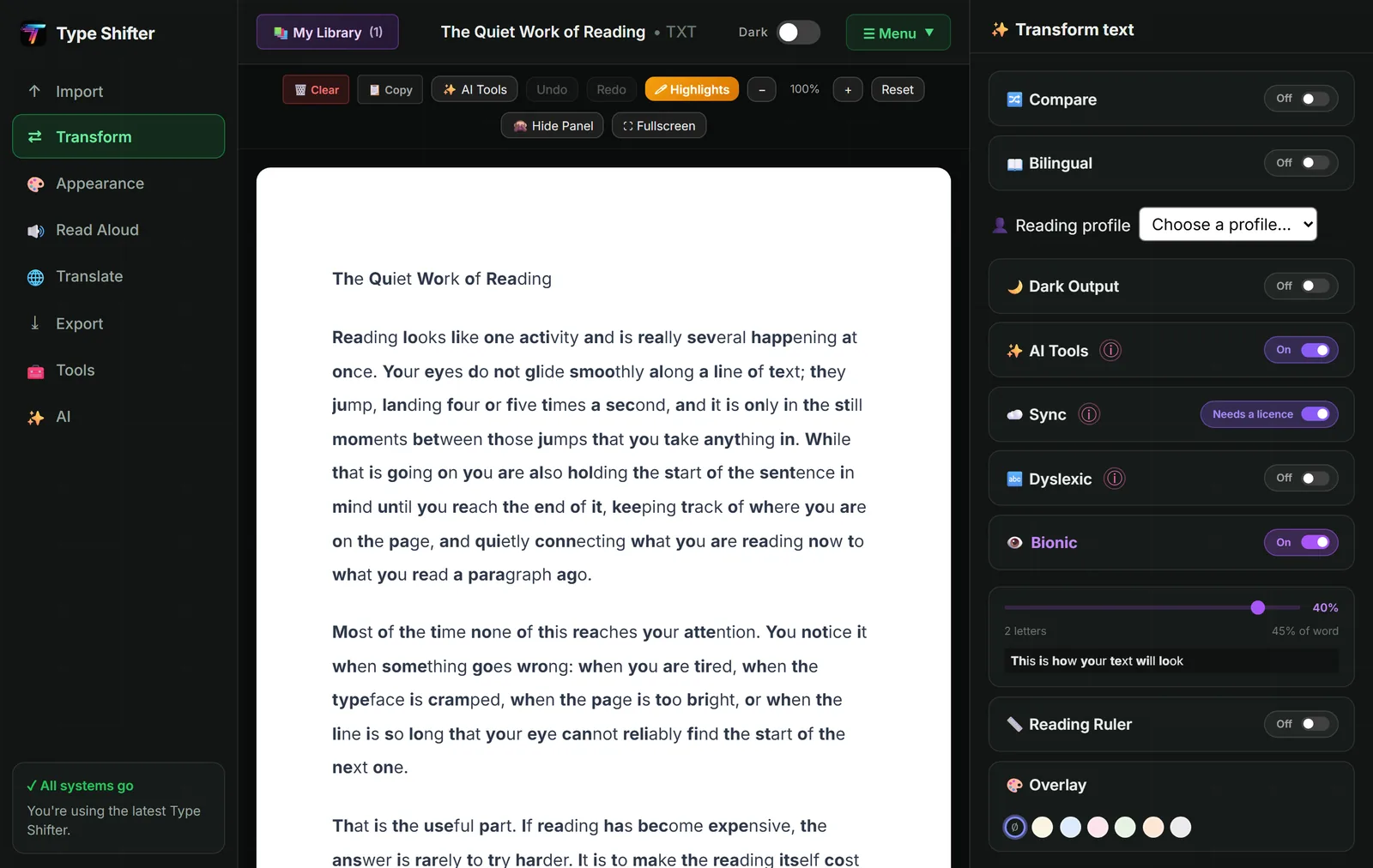
Bionic Reading bolds the opening letters of each word, giving your eye regular anchor points to land on rather than an undifferentiated grey stripe. The independent evidence on reading speed is genuinely mixed, and we have said so at length in our honest look at the science behind Bionic Reading. What is not in doubt is that a lot of people, particularly people with ADHD, find they reread less with it on. The slider matters more than people expect: a low setting often works better than a heavy one, because too much bold becomes its own kind of noise.
The reading ruler puts a marked band under the line you are on and follows your pointer. The colour overlay lays a soft tint over the page, in cream, blue, pink, green, peach or grey. If tinted overlays are new to you, our piece on reading rulers and colour overlays covers the honest evidence on who they help and who they do not.
Focus Modes: Dim Everything That Is Not the Bit You Are Reading
This is the tool that surprises people. Instead of marking where you are, it removes everywhere you are not.
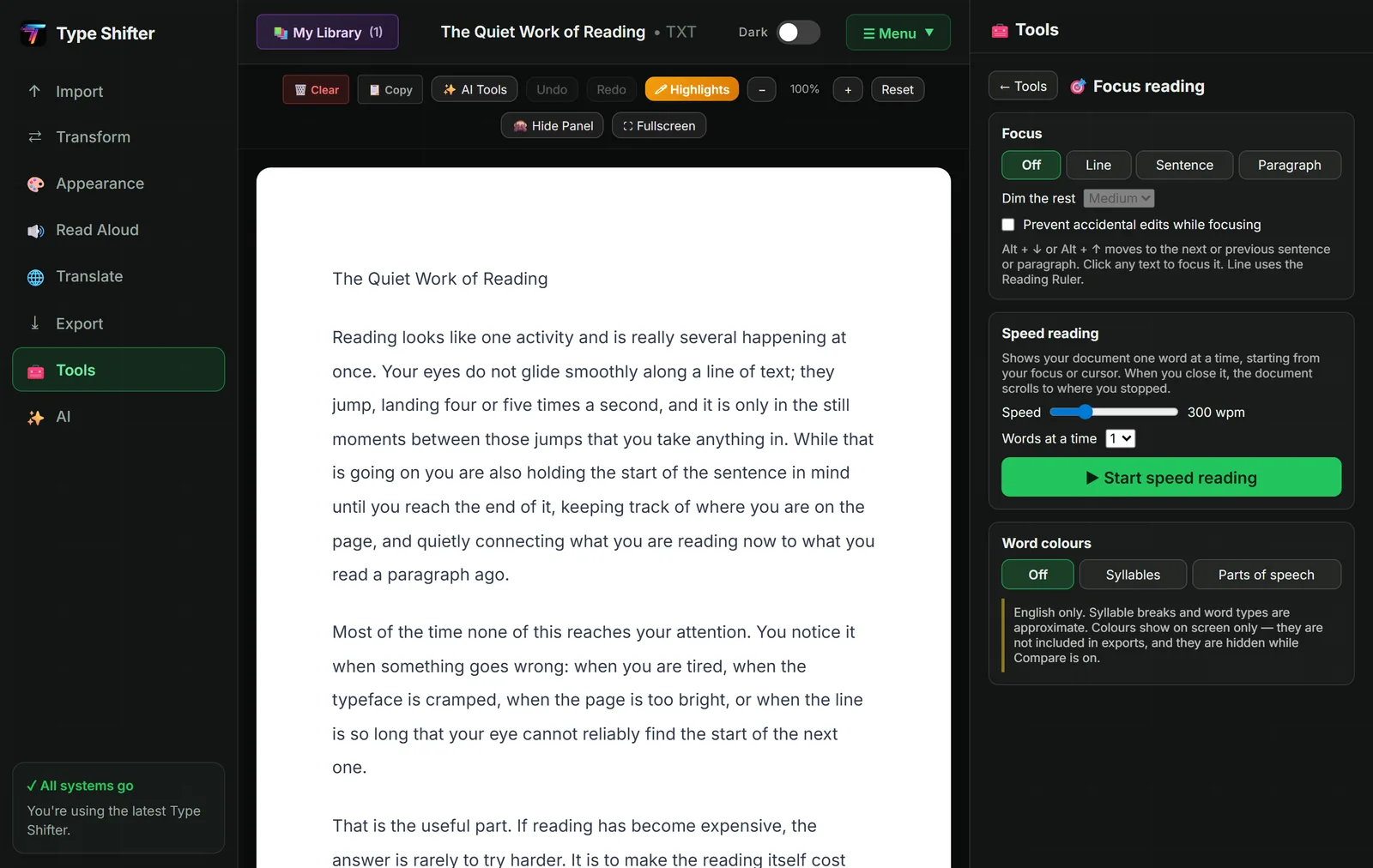
You choose how much of the page stays lit:
- Line uses the reading ruler, so one line stands out and the rest recedes.
- Sentence dims everything except the sentence you are on, which is the setting most people settle on. A sentence is a complete thought, so you keep the context you need without the page shouting at you.
- Paragraph keeps a whole block lit, which suits reading for gist rather than detail.
You can set how strongly everything else is dimmed, and there is a small option called prevent accidental edits while focusing that is worth switching on if you have ever typed a stray character into a document you were only reading. Alt with the up or down arrow moves to the next or previous sentence, so you can work through a page without touching the mouse at all.
Why this is safe to use on anything
The dimming is drawn on top of the document as a highlight layer rather than applied to the text. Your words, your saved highlights, your reading position, copying and every export are completely untouched. You can focus your way through a legal document and it is still, byte for byte, the document you opened.
Word colours, for when the word itself is the obstacle
Two further options sit on the same panel. Syllables tints alternate syllables, which breaks long words into the chunks you would say aloud. Parts of speech colours words by type, so the shape of a sentence becomes visible at a glance. Both are English only, both are approximate, and both show on screen only: they never appear in exports. They are a scaffold for a hard passage, not a permanent way to read.
Speed Reading, and What It Can Honestly Do
Speed reading here means showing the document one word at a time in the middle of the screen, a technique usually called RSVP. Because the words come to you, the eye stops moving altogether, and with it go both the return sweep and the temptation to slide back over what you have just read.
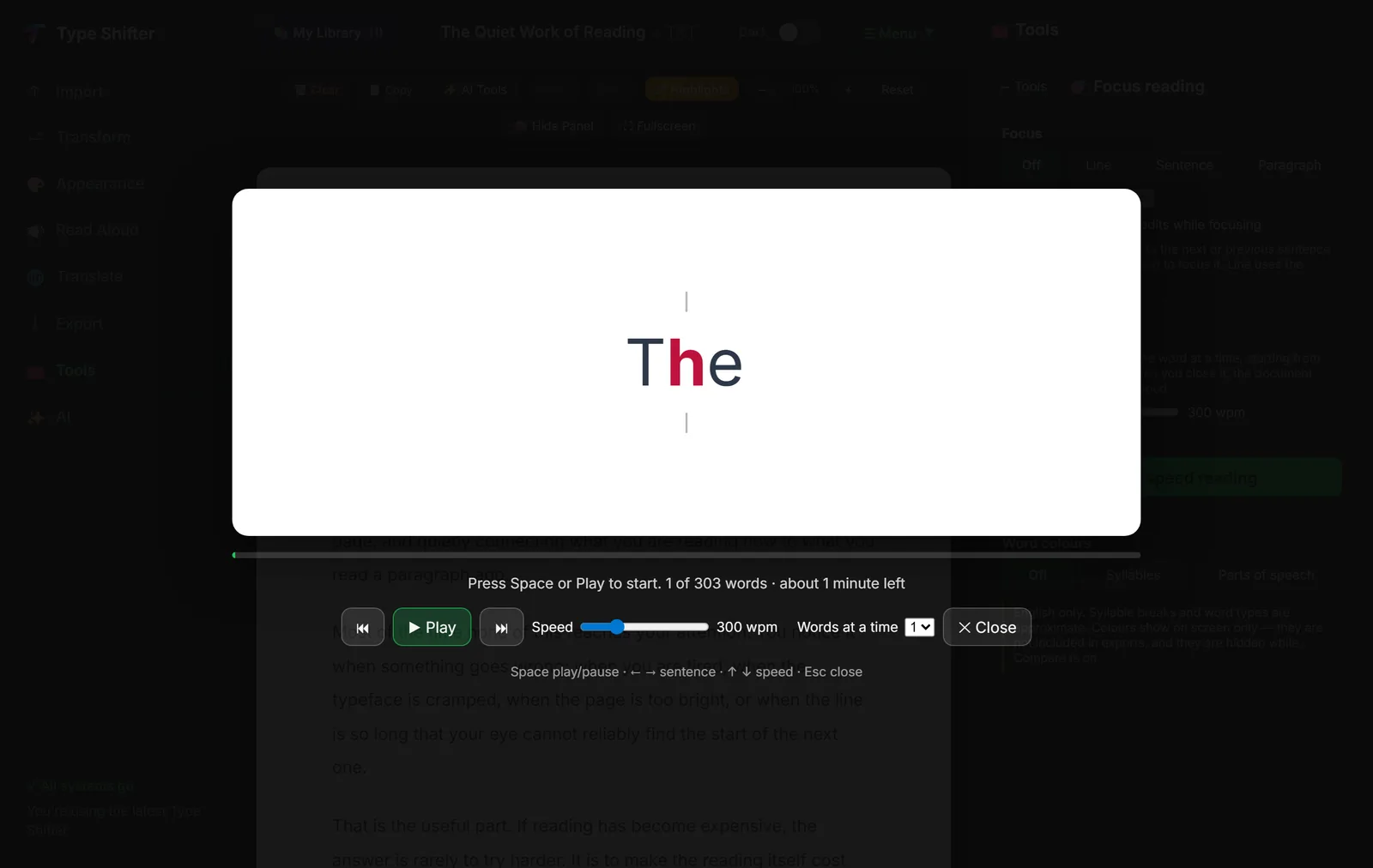
A few details make it more usable than the average version of this idea. One letter in each word is picked out in colour at the point the eye naturally fixes, so your gaze has somewhere to stay. The pauses are longer after commas, at the end of sentences and between blocks, so punctuation still does its job. You can show up to three words at a time if single words feel too staccato. And when you close it, the document scrolls to the last word you saw and flashes it, so you carry on from exactly where you stopped instead of hunting for your place.
It starts from whatever you were focused on, or your cursor, or the top of the document. Space plays and pauses, the left and right arrows move a sentence, the up and down arrows change the speed, and Esc closes it.
The honest bit about speed
Removing eye movement is a real saving, and 300 to 400 words a minute is comfortable for most people on familiar material. What no technique removes is the time your brain needs to understand something difficult. On dense or unfamiliar writing, a high words-per-minute number simply means you finished without taking it in. Our guide to reading faster without losing comprehension goes into where the real gains are.
Reading Profiles: Set It Once, Not Every Time
Here is the problem with everything above. Once you have found the combination that works for you, you have to set it up again every time you sit down, and the friction of doing that is quite enough to stop people bothering.
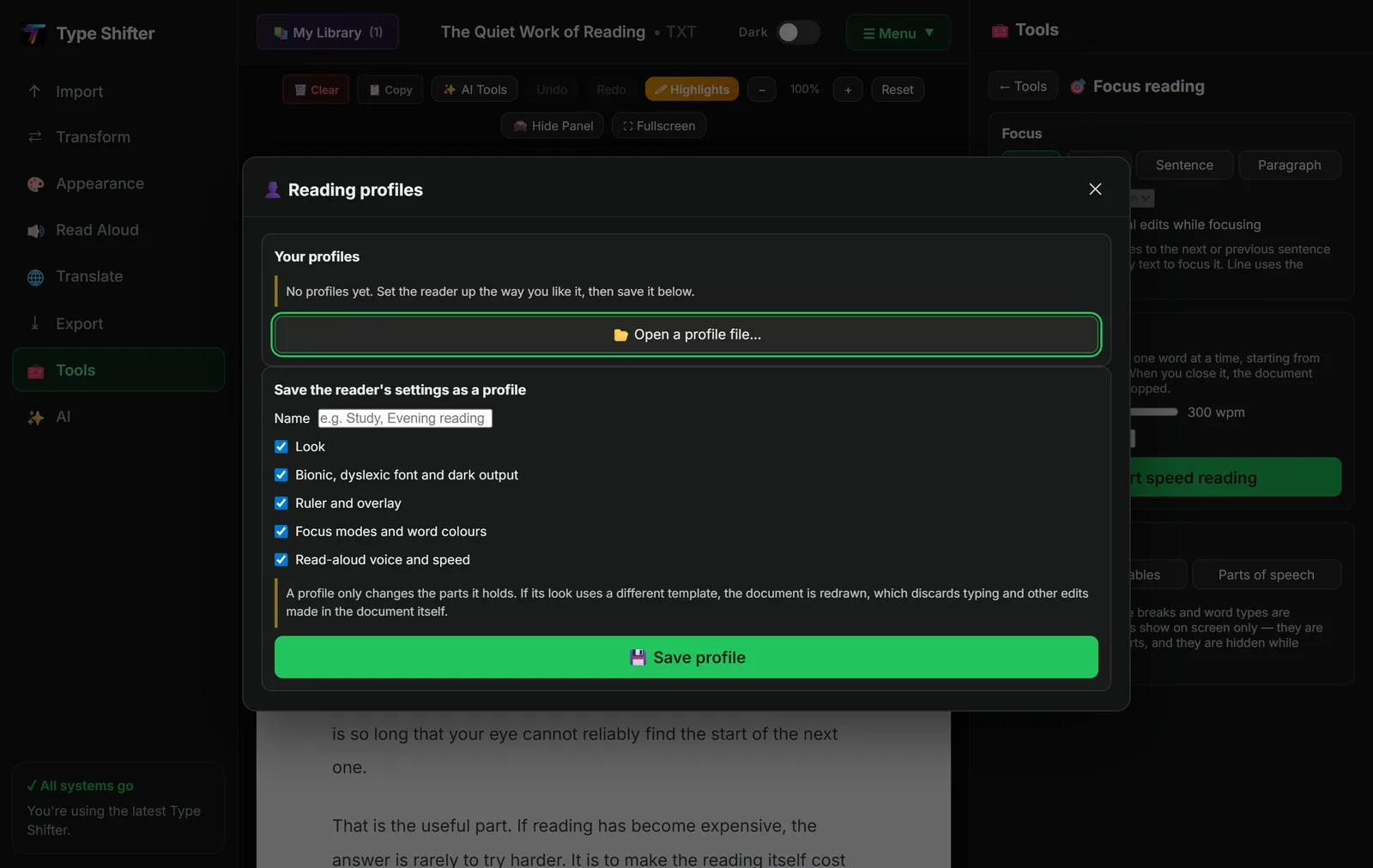
A profile can hold any combination of five things: the look of the page, Bionic Reading and the dyslexia friendly font and dark output, the ruler and overlay, focus modes and word colours, and your read aloud voice and speed. Because each part is optional, a profile can change one aspect of your reading and leave everything else exactly as it was.
Most people end up with two or three. Something like this:
| Profile | What it turns on | When you use it |
|---|---|---|
| Study | Sentence focus, Bionic at a low setting, reading ruler on, larger text in a narrow column | Dense material you need to actually absorb |
| Evening | Dark output, a warm tint, generous line spacing, no Bionic | Reading for pleasure, late, when bright pages hurt |
| Skim | Paragraph focus, speed reading ready to go, compact spacing | Working out whether something is worth reading properly |
| Low capacity | Big text, soft tint, sentence focus, read aloud at 0.9x | The days when reading is not happening |
Profiles save as files, so you can share one. That matters more than it sounds. A tutor can set up a profile that works for a student and send it to them, rather than talking them through eleven settings over the phone.
Reading Beside a Translation
One more view worth knowing about. Bilingual reading puts a document beside its translation, using the language packs already on your computer, so nothing is sent anywhere and it works offline. For anyone reading in a language they are still learning, having the original and the translation lined up is far better than flipping between two windows.
Putting It Together
If you take one thing from this article, make it this order. Fix the page first, then add a focus mode, and only then think about speed.
- Shorten the line and raise the size. Free, instant, and the single biggest improvement available to most people.
- Calm the background. Dark output, or a soft tint. See dark mode reading and eye strain for what the evidence supports.
- Turn on sentence focus. Give it a full session before you judge it.
- Try Bionic at a low setting. If it helps you reread less, keep it. If it feels like noise, turn it off with no hard feelings.
- Save it as a profile. So that tomorrow costs you one click instead of eleven.
None of these tools needs the internet, none of them sends anything anywhere, and all of them are part of the app rather than a subscription. If reading has been feeling like wading, the fix is usually much smaller and much more mechanical than it feels.
Try it on something you have been avoiding
Open a long document, turn on sentence focus, and see what a page feels like when it stops competing with itself. Free for 14 days.
Where to Go Next
If the trouble is less about your eyes and more about the words themselves, chat with your documents covers the tools that explain a sentence or build a glossary. If you would rather listen than read, turning recordings into documents and documents into audio is the companion piece. And if you are setting up a reading routine from scratch, how to make text easier to read is the place to begin.
Frequently Asked Questions
Why do I keep losing my place when I read?
Your eyes do not glide along a line, they jump in short hops and then swing back to find the start of the next line. That return sweep is the fragile moment, and the longer the line the more often it lands on the wrong one. Tiredness, stress, ADHD and visual stress all make it worse. Shortening the line and marking the current one removes most of the problem without any effort on your part.
What does a focus mode actually do?
It dims everything on the page except the line, sentence or paragraph you are reading, so your eye has nowhere else to land. In Type Shifter the dimming is drawn over the document rather than applied to it, so your text, highlights, reading position, copying and exports are completely unaffected.
Does speed reading actually work?
Showing words one at a time genuinely removes the eye movement between words and the temptation to go back, and many people comfortably read faster this way. What it cannot do is remove the time your brain needs to understand difficult material. It suits familiar or lightly written text far better than dense technical writing, and pushing the speed too high trades comprehension for a number.
What is a reading profile?
A named set of reading settings you can apply in one click, such as Study or Evening. A profile can hold the look of the page, Bionic Reading and the dyslexia friendly font, the reading ruler and colour overlay, focus modes and word colours, and your read aloud voice and speed. Each part is optional, and profiles can be saved as files and shared with somebody else.
Do these tools cost anything?
No. Focus modes, speed reading, the reading ruler, colour overlays, Bionic Reading, word colours and reading profiles all run on your own device and are part of the app, which is a one-off licence rather than a subscription. None of them needs the internet and none of them sends anything anywhere.
Will focus mode change my document or my exports?
No. The dimming and the word colours are drawn over the top of the page and are never written into the text. Exports, copying, highlights and your saved reading position all behave exactly as if nothing were switched on. Word colours are deliberately hidden while Compare is running, so a comparison is never coloured twice.
Do these help with dyslexia and visual stress?
Many people find they do, though it varies a great deal between individuals, which is exactly why every part of it is adjustable rather than fixed. Shorter lines, a tinted background, a line guide and generous spacing are the changes most often reported as helpful. Our guides to accessible reading with dyslexia and ADHD and reading rulers and colour overlays cover the evidence honestly, including where it is thinner than people assume.