Consistency Is a Quality Signal, Whether You Like It or Not
Readers judge a document before they read a word of it. Typeface, spacing, margins and whether the headings behave tell them, in a fraction of a second, how much care went into it, and they transfer that judgement straight onto the content. It is not fair, and it is thoroughly well documented, and we went into it properly in why your documents look unprofessional and how to fix them fast.
What makes it maddening is that the fix is not difficult, just tedious. Setting one document right takes a minute. Setting forty right takes an afternoon nobody has. So it never happens, and the folder stays as it is.
Batch Export: The Whole Folder, In One Run
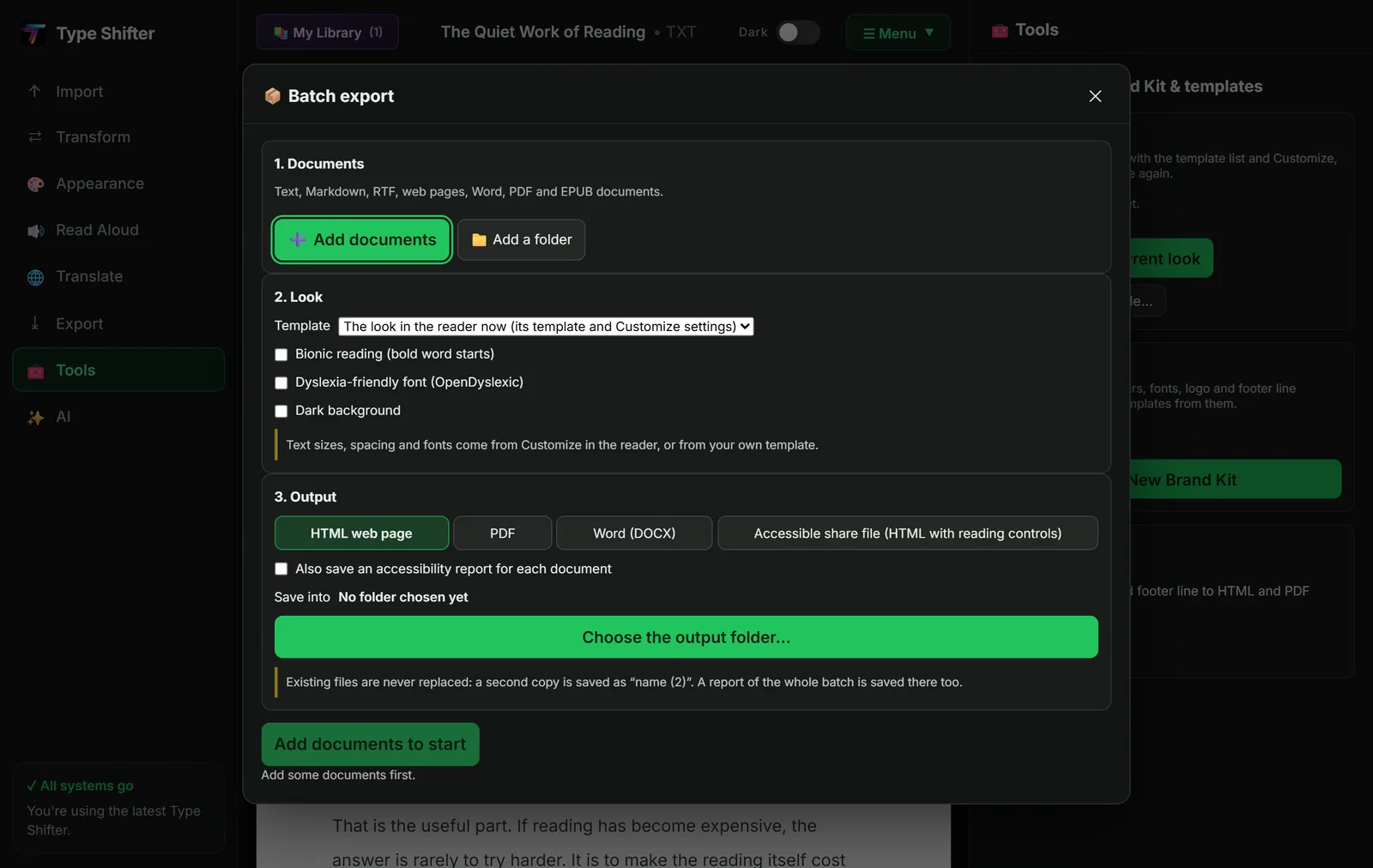
Three steps, in the order you would think of them.
The documents. Add files one at a time or point it at an entire folder. It takes text, Markdown, RTF, web pages, Word, PDF and EPUB documents, which between them cover almost everything that accumulates in a shared drive.
The look. Choose a template, or use whatever the reader is set to right now, with all its Customize settings. You can also decide whether Bionic Reading, the dyslexia friendly font or a dark background are applied across the whole batch, which is how you produce an accessible set of handouts in one pass rather than forty.
The output. HTML, PDF, Word, or an accessible share file, which is HTML with the reading controls built in so whoever opens it can change the font and spacing for themselves. You can also have an accessibility report saved beside every document.
Then you choose an output folder and let it go. Files are handled one at a time so memory stays bounded on a long run, each file is wrapped so one bad document never kills the batch, and Cancel stops cleanly between files rather than mid-write. Nothing is ever overwritten: an existing file stays put and a second copy is saved as "name (2)". A report of the whole run is saved in the folder when it finishes.
The settings are frozen when the run starts
A snapshot of your settings is taken the moment the batch begins, so you can carry on changing things in the reader while it works without any of it leaking into the batch. This is a small thing that saves a genuinely annoying class of mistake.
Brand Kits: Your Colours, Your Fonts, Your Logo
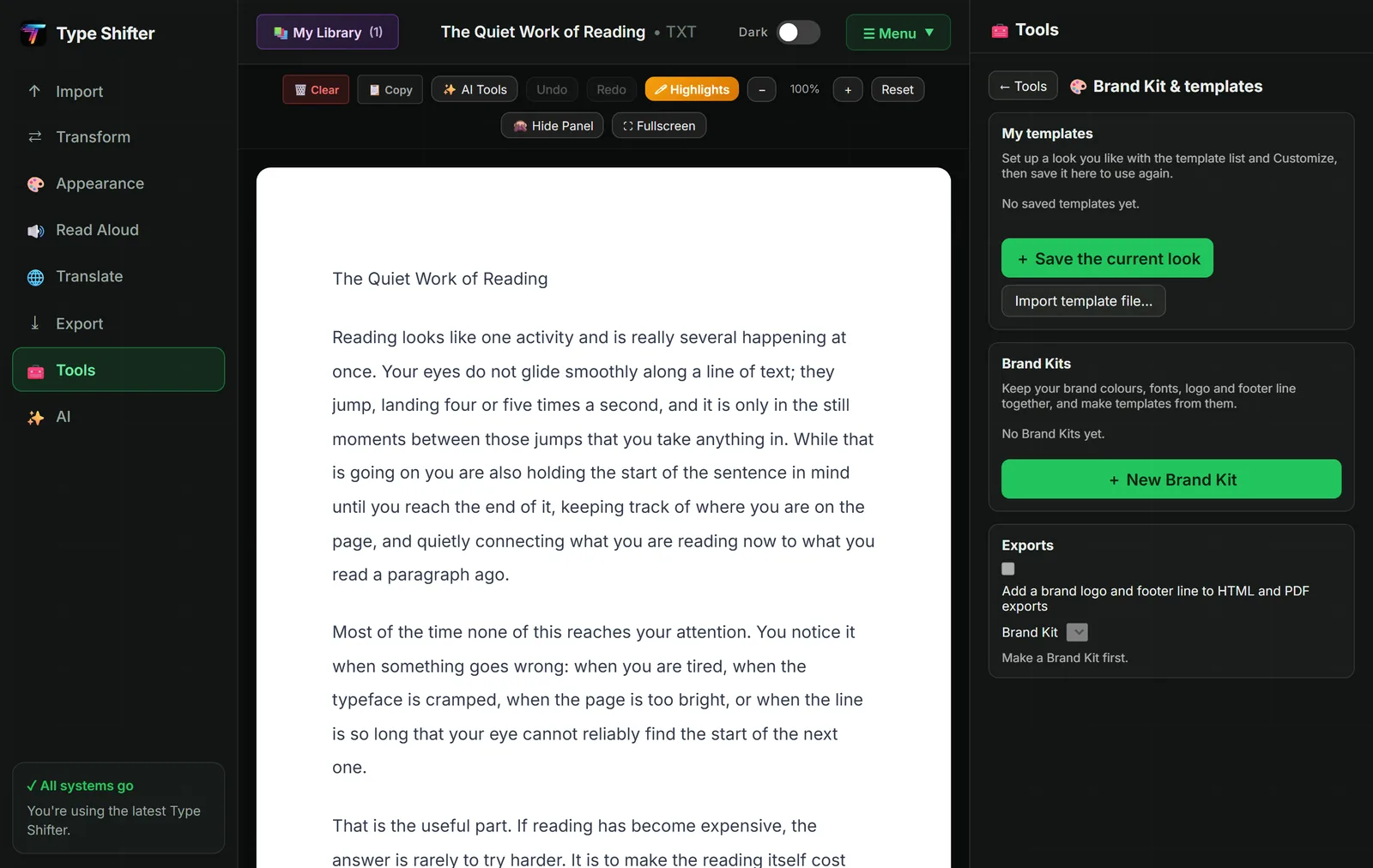
A Brand Kit holds a named set of brand colours, a heading font and a body font, a logo and a footer line. Once it exists you can tick a single box and have the logo and footer added to your HTML and PDF exports, and you can build templates from the kit so everything starts from the right place.
One detail worth knowing, because it is the kind of thing that catches people out elsewhere. When you add a logo it is redrawn through a canvas rather than embedded as-is. That strips out metadata and anything else hiding in the file, and caps the size. Your logo goes into the document; the photograph's location data and the designer's software fingerprint do not.
Alongside kits sit your own templates. Set up a look you like using the 150 built-in templates and the Customize panel, save it, and it is there for good. Templates are files, so you can send one to a colleague and have their documents come out matching yours. If you have not explored the built-in set, the 150 template library and the full tour of templates, fonts and exports are the places to look.
Everywhere a Document Can Go
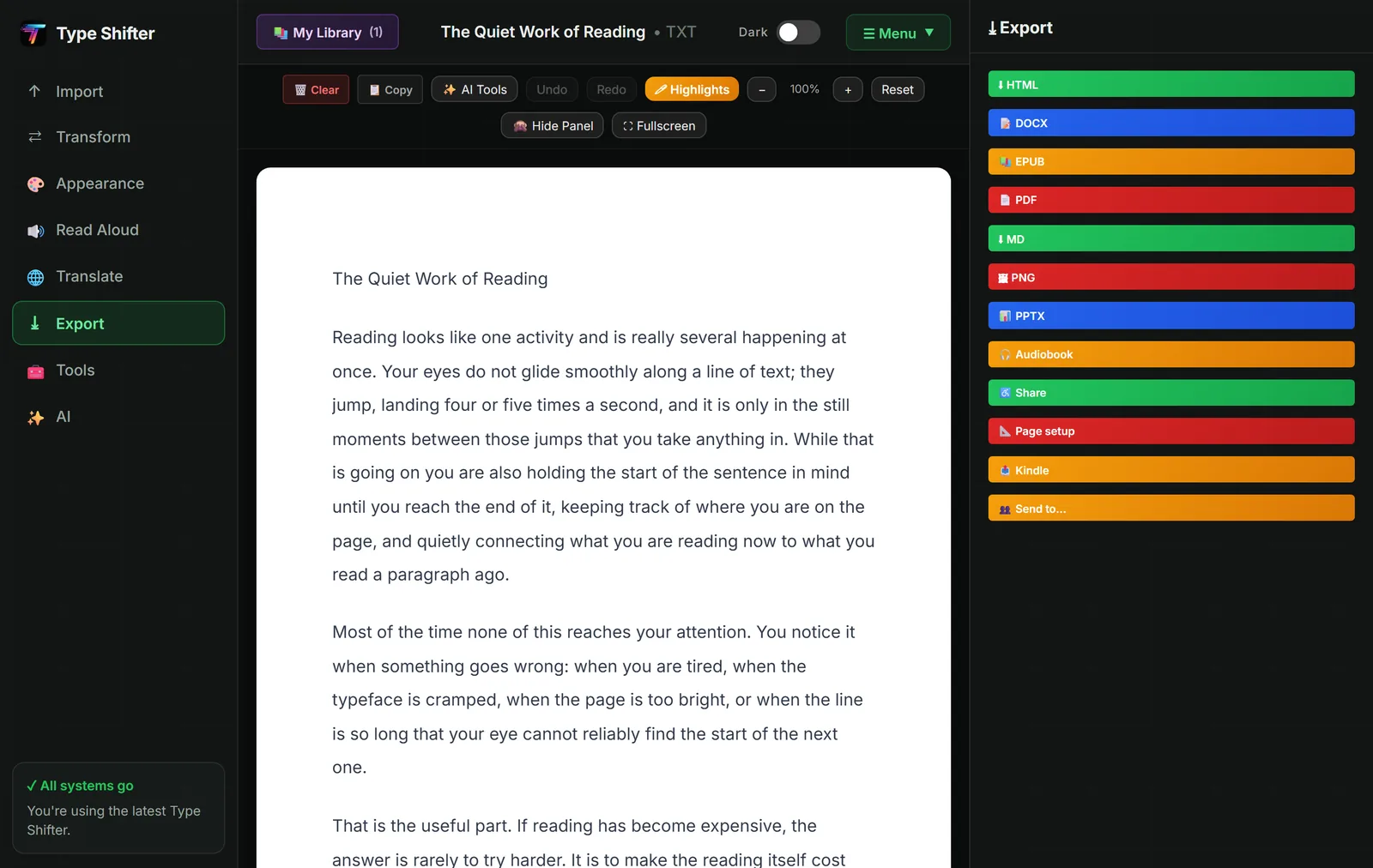
The export list has grown a good deal. Alongside the familiar HTML, DOCX, EPUB and PDF there are now:
- MD for Markdown, which is what you want if the text is heading into a wiki, a static site or a developer's repository.
- PNG for a picture of the document, useful for a slide, a social post or a preview.
- PPTX, a PowerPoint file, for when a document needs to become something you stand in front of.
- Audiobook, covered in saving documents as MP3 audiobooks.
- Share, which produces a single file somebody else can open and adjust to suit their own reading.
- Kindle, which sends the document to your Kindle as an EPUB.
- Page setup, for paper size, orientation and margins before anything is printed or turned into a PDF.
Imports have widened to match: PowerPoint, spreadsheets and ODT files now come in alongside everything that already did. If your question is specifically about getting out of Microsoft Word, exporting a Word document to PDF, EPUB and HTML for free covers that path in detail.
Making It Right Before It Goes Out
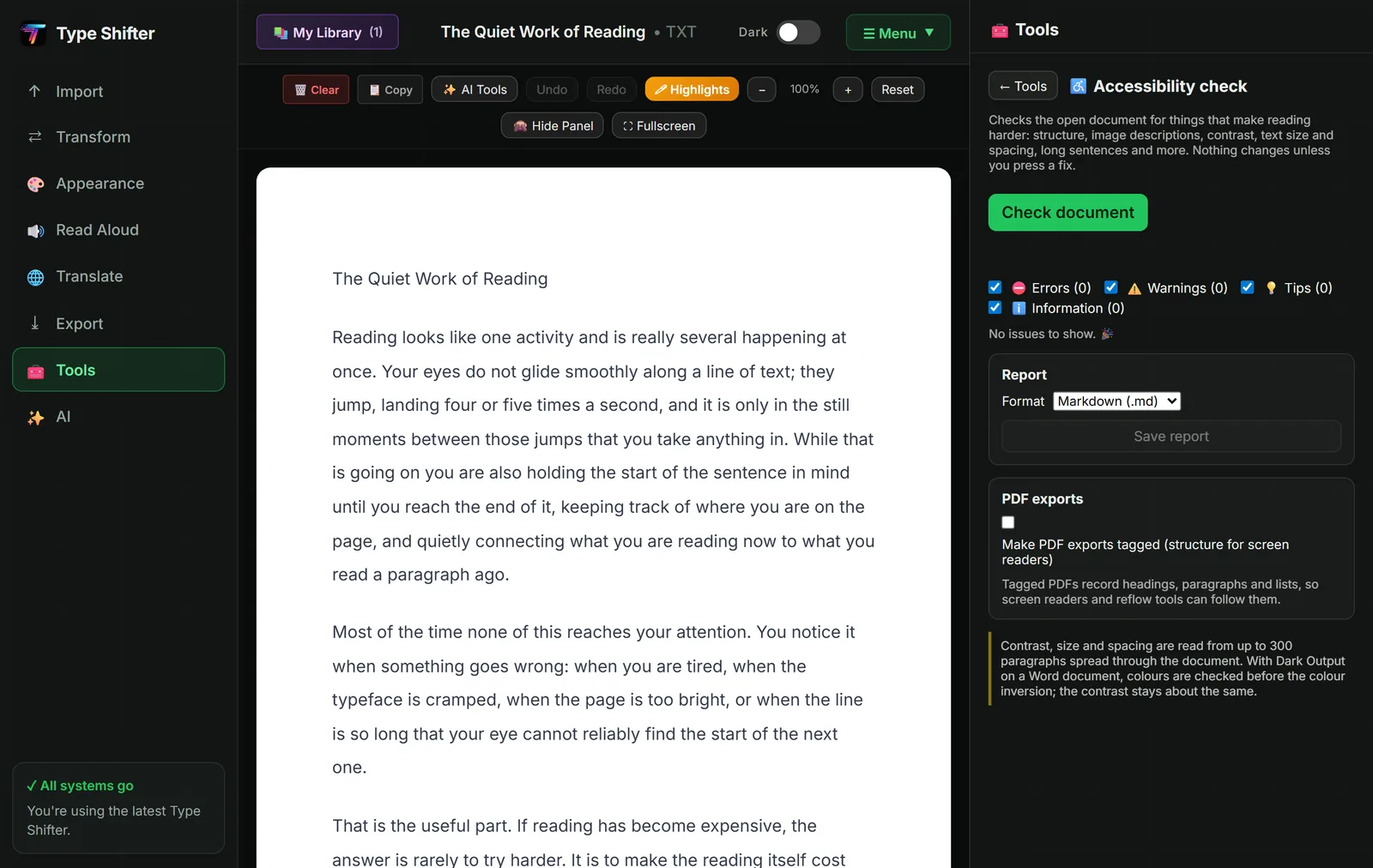
The accessibility check reads a copy of your document and reports on structure, missing image descriptions, contrast, text size and spacing, vague link text, heading order and reading level. Issues are sorted into errors, warnings, tips and information so you can deal with the serious ones first, and you can save the whole thing as a report.
Tick make PDF exports tagged and your PDFs record their headings, paragraphs and lists, so screen readers and reflow tools can follow the structure instead of guessing at it. That single option is the difference between a PDF that works for a blind colleague and one that does not, and it costs you nothing. Our plain English accessibility checklist covers the rest.
Three more tools sit alongside it. Check and tidy the layout finds crooked spacing, stray page breaks and headings that do not match, with no AI involved. Spelling runs on your device with a curated list of the misspellings dyslexic writers actually make. And Compare documents puts two versions side by side with every addition, deletion, change and move marked, which is what you want when somebody sends back "a few small edits" to a forty page document.
The Reference Manager
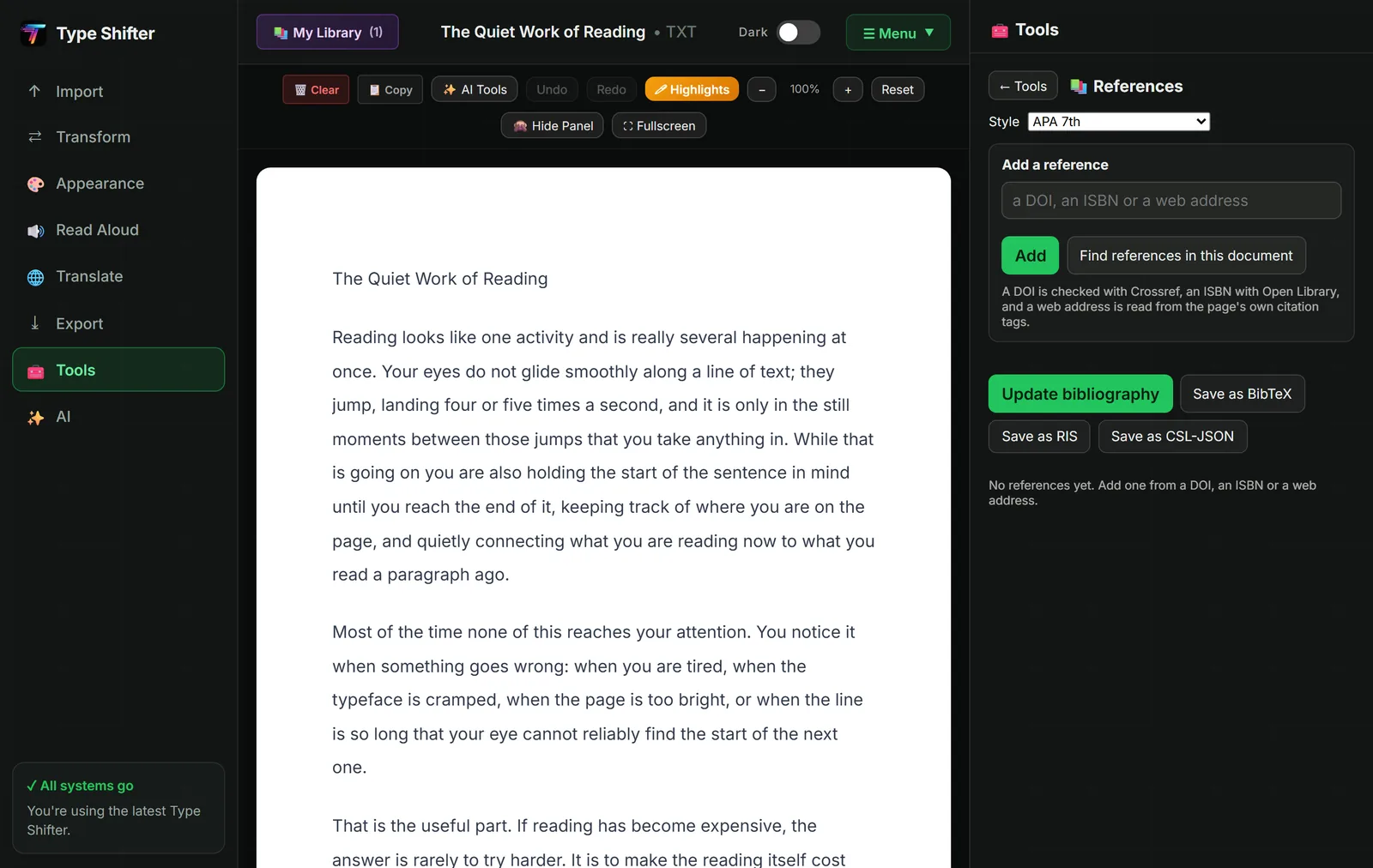
Referencing is the part of writing that is pure admin, which is why so many otherwise good pieces of work lose marks on it. This turns it into a paste and a click.
- A DOI is looked up with Crossref, which is the registry the publishers themselves maintain.
- An ISBN is looked up with Open Library.
- A web address is read from the page's own citation tags, so you get the author and date the page declares rather than a guess.
Pick your style, APA, Harvard or MLA, and the whole list reformats. Find references in this document scans what you have already written and pulls the citations out of it, which is a merciful feature if you have been pasting links into a draft for a fortnight. Update bibliography writes the list into the document, and you can export the library as BibTeX, RIS or CSL-JSON if it needs to go into Zotero, EndNote or a colleague's system.
One honest caveat: a lookup is only as good as the record behind it. Crossref and Open Library are excellent and occasionally wrong or incomplete, especially for older books and obscure editions. Check the entries for anything being marked.
A Worked Example
Say you have to send out an induction pack: eleven documents written by five people over three years.
| Step | What you do | Time |
|---|---|---|
| 1 | Set one document up the way the pack should look, then save it as your own template | 5 minutes |
| 2 | Make a Brand Kit with your colours, fonts, logo and footer line | 5 minutes |
| 3 | Open the worst offender and run the layout check and the accessibility check on it, to see what the common problems are | 5 minutes |
| 4 | Batch export all eleven with your template, tagged PDF on, and an accessibility report for each | A few minutes, unattended |
| 5 | Skim the batch report, fix the two documents it complains about, run those two again | 10 minutes |
Half an hour, and every document in the pack matches, carries your logo, and has a report you can point at if anybody asks whether it is accessible. The same template and kit are then waiting next time, so the second pack costs five minutes.
What stays on your computer
Batch export, brand kits, templates, page setup, the accessibility check, the layout check, spelling, comparison and every export format all run on your own device and send nothing anywhere. The reference manager is the exception in this article, and it says so: it looks a citation up online, because that is the only place the citation lives.
What It Costs
Everything in this article is part of the app itself, which is a one-off £29 licence rather than a subscription, with a 14 day free trial first. These tools are not in the free version that follows the trial, which keeps reading, formatting and exporting. None of it needs Pro. Cloud storage for Drive, OneDrive, Dropbox and Notion is available in the Windows app and deliberately not in the browser, because a web page has nowhere safe to keep an access token, and moving that to our server would mean we could see your files.
Point it at the folder you have been avoiding
One template, one run, and everything in it matches. Free for 14 days, no card needed.
Where to Go Next
If the documents need work on the inside rather than the outside, chat with your documents covers rewriting, grammar and argument review. If they are PDFs that need merging, compressing or redacting first, see nine PDF tools that never upload your files. And if what you are really assembling is course material, flashcards, quizzes and study packs takes it from there. Your brand kit also carries through to slides, so turning a document into a presentation keeps the same look, and My Library's folders, topics and stars keep the finished documents easy to find.
Frequently Asked Questions
Can I convert a whole folder of documents at once?
Yes. Batch export takes individual files or an entire folder of text, Markdown, RTF, web pages, Word, PDF and EPUB documents, applies one template and one set of reading settings to all of them, and writes them out as HTML, PDF, Word or an accessible share file. Files are handled one at a time so memory stays under control, one failure never stops the run, and a report of the whole batch is saved with the results.
What is a Brand Kit?
A saved set of brand colours, a heading font and a body font, a logo and a footer line. Once stored you can add the logo and footer to HTML and PDF exports, and make templates from the kit, so everything you send out looks like it came from the same place.
Can it build a bibliography for me?
Yes. Paste a DOI, an ISBN or a web address and the reference is fetched and formatted in APA, Harvard or MLA. A DOI is checked with Crossref, an ISBN with Open Library, and a web address is read from the page's own citation tags. It can also find the references already sitting in your document, and export the list as BibTeX, RIS or CSL-JSON for another tool.
Does batch export overwrite my files?
Never. Existing files are left alone and a second copy is saved as name (2). Your source documents are not modified at any point either, because everything is written into the output folder you choose.
Can I make my PDFs accessible?
Yes. The accessibility check looks at structure, image descriptions, contrast, text size and spacing, long sentences and more, and nothing changes unless you press a fix. There is also an option to make PDF exports tagged, which records headings, paragraphs and lists so screen readers and reflow tools can follow them. In a batch run you can save an accessibility report for every document.
Can I share a template or a brand kit with a colleague?
Templates save as files and can be imported by anybody else running Type Shifter, which is the simplest way to get a team's documents matching. Reading profiles work the same way, so you can hand somebody a set of reading settings as well as a set of design ones.
Will batch export change how my documents read?
It changes how they look, not what they say. The text is not rewritten, nothing is summarised, and no AI is involved at any point. If Bionic Reading or the dyslexia friendly font are ticked they are applied to the output, which is a formatting choice you are making deliberately for that batch.