The Hidden Cost of a Messy Reading Pile
Nobody sets out to be disorganised. Documents simply arrive faster than we can file them: a chapter from a course, a handbook from a new job, a tenancy agreement, a novel you promised yourself you would finish. Each one lands wherever your browser or email decided to put it, and each one needs to be found again later.
The trouble is that every search is a small act of attention, and attention is the thing most of us are shortest of. If you have ADHD, or you are reading through brain fog, or you are simply tired at the end of a long day, the effort of finding the document can use up the effort you had set aside for reading it. You open the laptop to study and twenty minutes later you have tidied a folder and read nothing.
A good document organiser does not ask you to become a tidier person. It remembers things for you. That is the thinking behind the new My Library, and it is worth walking through properly, because the details are what make it feel effortless.
My Library: Every Document, With Your Place Kept
Every document you open in Type Shifter is kept in your library automatically, along with how far through it you are. You do not have to save it anywhere or remember what you called it. Open a PDF on Monday, close the app, and on Thursday it is waiting for you at the exact point you stopped.
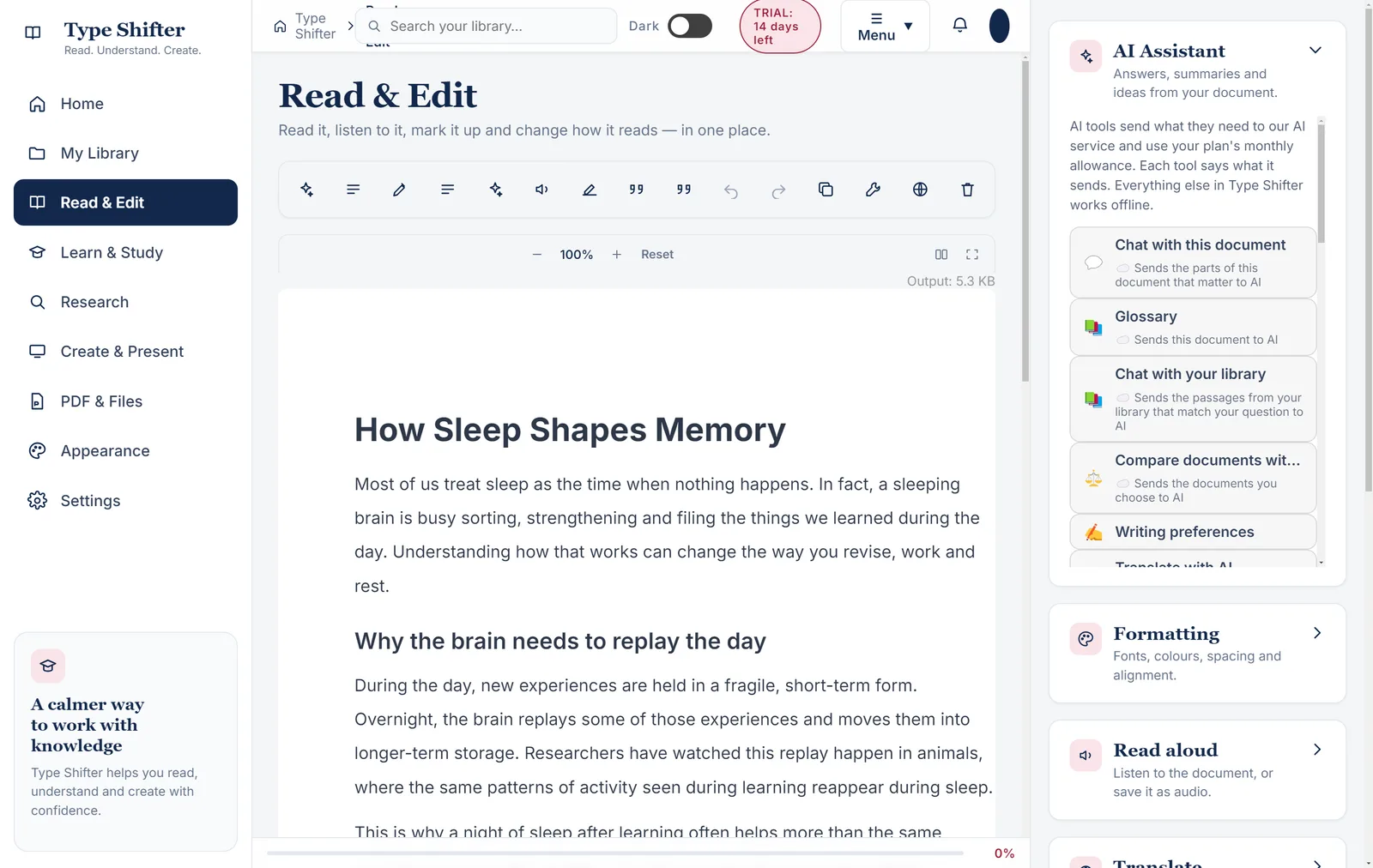
In the desktop app for Windows, the library is organised the way people actually think about their reading, which is rarely by file name. (Folders, topics, levels and stars arrive with the new Studio layout, which we come to below. The web and phone apps keep your library and your place too, with search, type filters and sorting.)
- Four tabs. All documents, Recent (anything you have opened in the last seven days), Folders, and Favourites. Each tab shows how many things are in it.
- Folders. Press New folder, give it a name, and file documents into it from their menu. Typing a new name while you are moving a document creates the folder there and then, so you never have to stop and set things up first.
- Topics and levels. Give a document a topic, such as History or Household, and a level, such as Level 3 or Advanced. Anything you have used before is offered again as a one-tap choice, so your labels stay consistent without you having to remember them.
- Stars. Tap the star beside anything you reach for often, and it appears under Favourites.
- Filters and sorting. Narrow the list by type, topic or level, then sort by when you last opened something, when you added it, its name, or its length. Switch between a list and a grid of cards whenever you like.
Under each document's name sits a small line that answers the questions you would otherwise have to open it to answer: which folder it lives in, how far through you are (or simply Finished), and how many highlights you have made in it.
Tidying up without the fear of losing something
This matters more than it sounds. Taking a document out of a folder only takes it out of the folder. Removing a whole folder leaves every document that was in it safely in your library. The one action that genuinely deletes something is Remove from the library, and it asks you first, telling you plainly that your highlights and your place go with it. You can reorganise as boldly as you like.
On the right, Library insights counts what you actually have: documents, words and highlights, your most used topics as clickable shortcuts, how much space the library is taking on your computer, and a gentle note of how many documents are not in a folder yet. Every number is counted from your own library rather than estimated, which is a small promise we take seriously.
Home: Carry On Where You Left Off
The fastest way back into your reading is not a search box. It is a list of what you were doing.
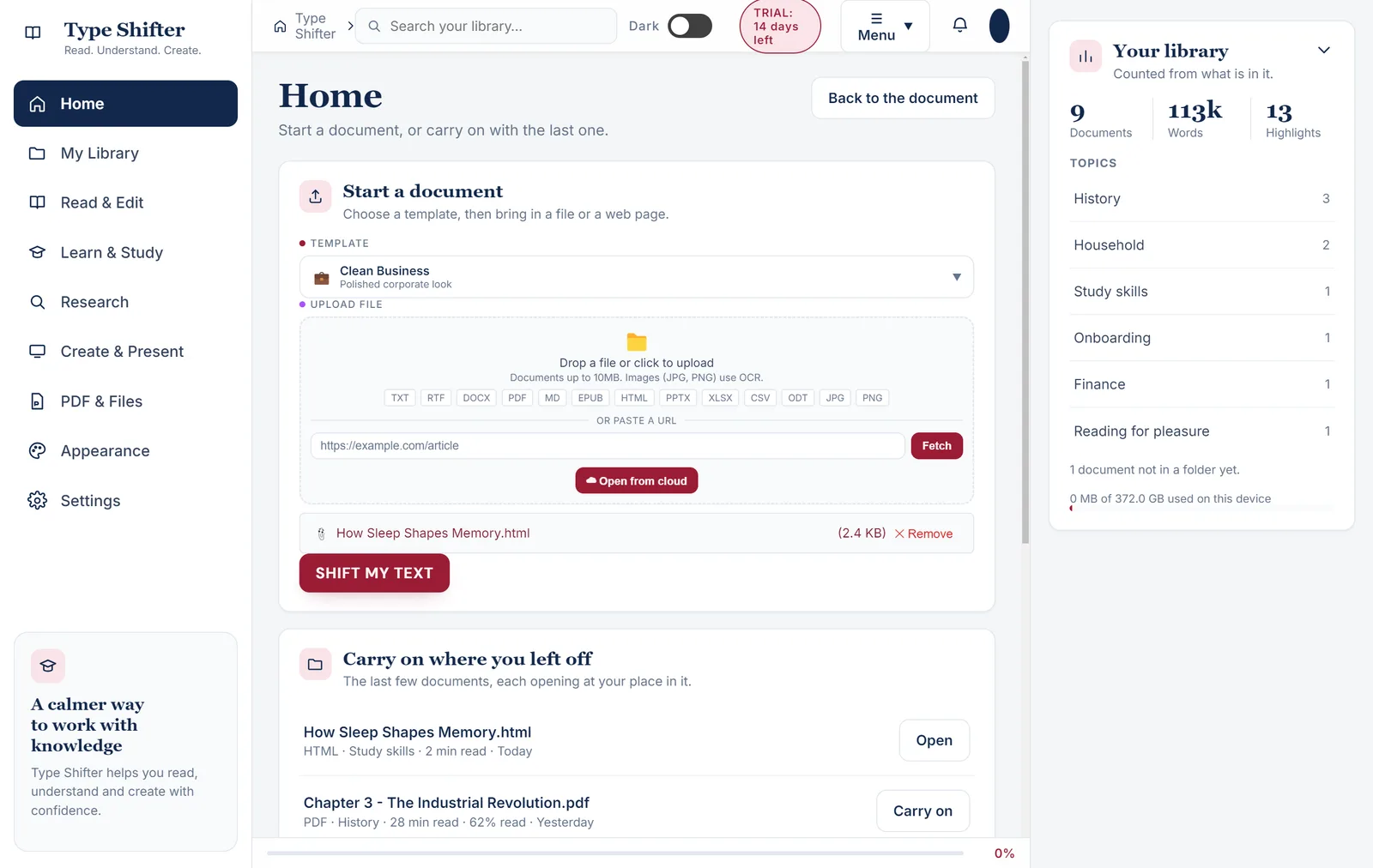
Home offers two things. Start a document lets you pick a template and bring in a file or a web page. Carry on where you left off lists the last five documents you had open, each with its topic, reading time and progress, and a single button to go straight back in. Once a document is open, Home becomes that document, and a Start something else button takes you back to the start cards whenever you need them.
For anyone who struggles with getting started, this is the whole point. The hardest moment in any reading session is the first one. Removing the decisions from it, which file, which folder, which page, makes that moment much smaller.
Highlights and Notes You Can Actually Use Later
Most of us highlight generously and then never look at those highlights again, because they are scattered through dozens of documents with no way to gather them up. Type Shifter keeps them together.
Select any passage and choose Highlight. It turns yellow, is saved against that document, and reappears every time you open it. The Highlights button shows how many you have made, and pressing it opens a window with every one of them in the order they appear in the document.
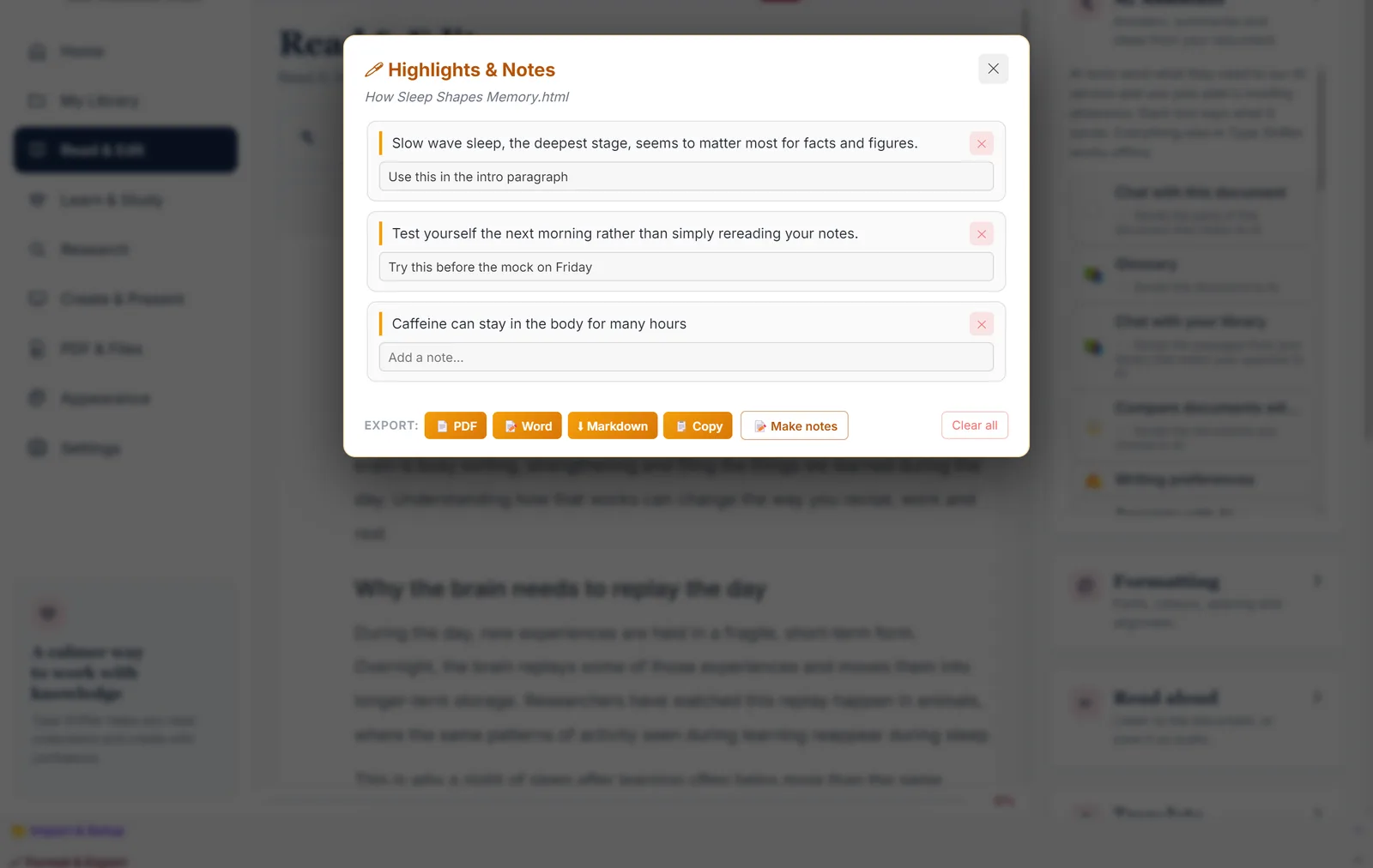
From here you can:
- Jump back to any passage by clicking it, so the highlight becomes a bookmark as well as a reminder.
- Add a note beside each one. Notes save as you type, so there is no button to forget.
- Export everything as a PDF, a Word document or Markdown, or copy it all to paste into an essay plan, a report or an email.
- Make notes with AI, if you have the Pro plan, which turns your highlights into a tidy set of study or meeting notes.
For students, this is a revision sheet that writes itself as you read. For anyone at work, it is the difference between "I read something about that" and being able to paste the exact sentence into a message. The same Highlights window is in the desktop app, the web app and the phone app, so the habit follows you.
A Progress Bar Instead of Page Numbers
Here is a small change we are rather proud of. Page numbers on screen are often wrong, because a document's pages depend on the size of the window you happen to be reading it in. We found a fourteen page document proudly announcing it was on page one of two.
So page numbers have gone, and in their place is a slim bar along the bottom of the page with a percentage beside it. It works the same way for Word documents, PDFs, ebooks and pasted text, it matches the phone app, and it simply hides itself when the whole document fits on screen. The library uses the same measure, which is why you see 62% read or Finished beside each document. Knowing you are two thirds of the way through a chapter is surprisingly motivating on a slow evening.
The Studio Layout: One Page for Each Job
Everything above works in the layout you already know. The desktop app for Windows now also offers a second one, called Studio, and it is worth trying if you have ever felt that a reading app with every tool on one screen is a lot to take in.
Studio gives each kind of work its own calm page, each with a clear heading and a short explanation of what it is for:
| Page | What it is for |
|---|---|
| Home | Start a document, or carry on with the last one |
| My Library | Folders, topics, levels and stars for everything you have opened |
| Read & Edit | Read, listen, highlight and change how the page looks, with word count, read time and a plain English reading level |
| Learn & Study | Flashcard decks with a review player, quizzes, glossaries and workbooks |
| Research | Your sources, formatted in APA 7th, Harvard (Cite Them Right) or MLA 9th |
| Create & Present | Turn a document into slides, a narrated video, an audio overview or another format |
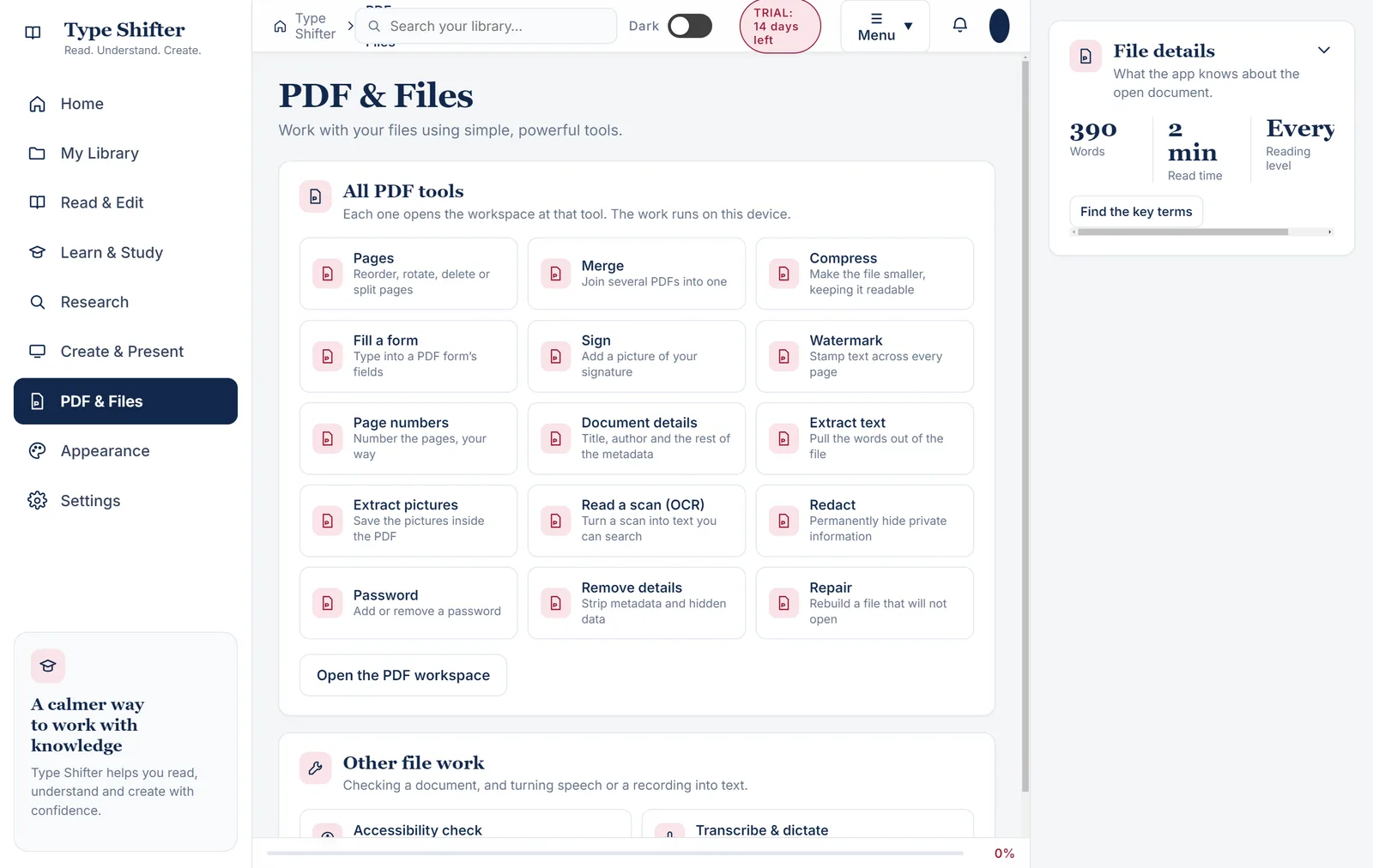
| PDF & Files | All fifteen PDF tools, from merging and compressing to redacting and repairing |
| Appearance | Light or dark, the layout, and your reading preferences |
| Settings | Sync, cloud storage, your plan, and which features are switched on |
Nothing has been taken away to make this happen. Studio is the same app, with the same tools and the same documents, arranged differently. You switch it on in Appearance, under Layout, and you can go back to Classic whenever you like. Your documents, settings and licence are untouched either way. Studio is still growing, and the odd page opens one of the existing tool windows while its own screen is being finished, but everything in it works.
Learn & Study, with a review player that does the scheduling
If you make flashcards, Learn & Study shows each deck with how many cards are due today and how many are new. Press Review, answer the question in your head, show the answer, and rate yourself: Again, Hard, Good or Easy. The app then decides when you should see that card next, using the well tested SM-2 method of spaced repetition, so the cards you find easy drift further apart and the tricky ones keep coming back until they stick. You can make a card straight from a highlighted passage, which ties the whole reading and revising loop together. Our guide to revising smarter with flashcards, quizzes and study packs goes into the science of why this works.
Research, for anyone who has ever lost a reference
The Research page gathers your sources in one list. Add one by DOI, ISBN or web address and Type Shifter looks up the rest, then formats it in APA 7th, Harvard (Cite Them Right) or MLA 9th. Anything missing a detail is flagged so you know before your tutor does. Copy the whole bibliography, or copy it as BibTeX or RIS for a reference manager. If you are working through a stack of papers, how to read academic papers faster pairs well with this.
How It Fits Into a Real Week
Features are only useful if they fit around your life, so here is how three quite different people might use this.
A sixth form or university student makes a folder for each module and tags every chapter with its topic. During the week they read with the progress bar ticking along, highlight the lines that matter and add a quick note to each. On Sunday they open Highlights and Notes, export it to Word, and they have a revision sheet they did not have to write. Anything worth memorising becomes a flashcard, and the review player tells them what to go over each day.
Someone starting a new job gets a handbook, a set of policies and a pile of onboarding documents in the first week. They go into a Work folder with the topic Onboarding. The handbook is starred. When a question comes up a fortnight later, the answer is two clicks away, highlighted, with a note saying why it mattered.
Anyone running a household has a tenancy agreement, a boiler manual and a stack of letters that all need finding at the worst possible moment. A Home admin folder, sorted by name, turns a frantic search into a calm one. And because a document stays in the library until you choose to remove it, the manual you need once a year is still there when the boiler starts making that noise again.
A note for neurodivergent readers
Working memory does a lot of invisible work: remembering where things are, where you got to, and why something mattered. When it is under strain, as it often is with ADHD, dyslexia or anxiety, that invisible work is where the day leaks away. Tools that hold that information for you are not a crutch. They free up your attention for the part you actually care about. If this resonates, why reading feels so hard with ADHD explains the science in more depth.
Your Library, Your Computer
Everything described here lives on your own computer. Your library, folders, topics, stars, highlights, notes and reading progress do not need the internet and are not sent anywhere. If you activate a licence and choose to switch sync on, your documents, your place in them and your highlights can follow you to up to three devices, including the Android app and the web app on your phone. Sync has its own switch, and it is entirely your call.
Getting Started in Five Minutes
- Open three documents you are currently reading. They go into your library automatically.
- Make one folder for the thing that matters most this month, such as a module, a project or a house move.
- Give each document a topic. Just one word is fine. Future you will be grateful.
- Star the one you open most.
- Highlight one sentence you want to remember, add a note, and open Highlights to see it waiting for you.
That is it. From then on, the library quietly keeps itself in order, and your reading time goes on reading.
Give your reading a proper home
Try My Library, Highlights and Notes and the progress bar free for 14 days. One payment of £29 unlocks the full app for good, with no subscription.
Where to Go Next
Once your documents are organised, the natural next step is doing something with them. Turning a document into slides, a narrated video or an audio overview shows how Create & Present takes a report or chapter and makes it into something you can present. If you want to read on the move, Type Shifter on your phone and tablet covers the Android app and listening on the go. And if you are tidying up a folder full of messy PDFs, nine PDF tools with no uploads is the practical companion to this piece.
Frequently Asked Questions
How do I organise my documents in Type Shifter?
Every document you open is kept in My Library with your place in it. In the Studio layout of the Windows desktop app you can also make folders, give each document a topic and a level, and star the ones you use most. The library can then be filtered by type, topic and level, sorted by when you last opened something, when you added it, its name or its length, and shown as a list or a grid.
Does taking a document out of a folder delete it?
No. Taking a document out of a folder only takes it out of that folder, and removing a whole folder leaves every document in it safely in your library. The only thing that deletes a document is Remove from the library, which asks you to confirm first.
Can I export my highlights and notes to Word?
Yes. The Highlights and Notes window lists every passage you have highlighted in a document, in order, with a note box beside each one. You can export the lot as a PDF, a Word document or Markdown, or copy them to paste somewhere else.
What is the Studio layout?
Studio is a second layout in the Type Shifter desktop app for Windows. Instead of one workspace with panels, it gives each job its own page: Home, My Library, Read & Edit, Learn & Study, Research, Create & Present, PDF & Files, Appearance and Settings. You switch it on in Appearance, under Layout, and you can switch back to Classic at any time. Your documents, settings and licence are untouched either way.
Do I need the internet to use My Library?
No. The library, folders, topics, stars, highlights, notes and reading progress all live on your own computer. If you have activated a licence and switched sync on, your documents, reading position and highlights can also follow you to your other devices, up to three of them.
Which reference styles does the Research page support?
APA 7th, Harvard (Cite Them Right) and MLA 9th. Sources can be added by DOI, ISBN or web address, and the finished bibliography can be copied as formatted text, as BibTeX or as RIS. The companion guide to brand kits, batch export and the reference manager covers adding sources in more detail.