The Reading You Could Be Doing Right Now
Ask people why they do not read more and the answer is almost always time. Yet the same people are rarely short of moments. They are short of moments in which reading feels possible. Opening a work document on a phone usually means pinching, zooming and scrolling sideways along every line, and after two paragraphs it is easier to give up.
Change that one thing, so that the document reflows to fit the screen, in a size and colour that suit you, at exactly the point you left it, and those moments start to count. Our guide to reading more when you are busy is built on exactly this idea. Here is how Type Shifter makes it work on a phone.
Two Ways to Get It
The Android app. Download it directly from our website and install it in a minute. Android will ask you to allow installs from your browser the first time, which is normal for apps downloaded outside a store. A Google Play listing is on its way. Once installed, reading, formatting and read aloud all run on the phone itself.
The web app in your phone's browser. Open typeshifter.com/app on your phone and you get the very same phone layout, with the same screens and buttons as the Android app. Nothing to install, and it works on any phone with a modern browser. The web app does need a connection to load.
One licence, every device
There is no separate phone price. The one-off £29 licence covers Windows, Android and the web app, and you activate your phone with the same key from your receipt. One key can be used on up to three devices, so your laptop, your phone and your tablet are all covered.
Six Tabs, Everything Within Reach of Your Thumb
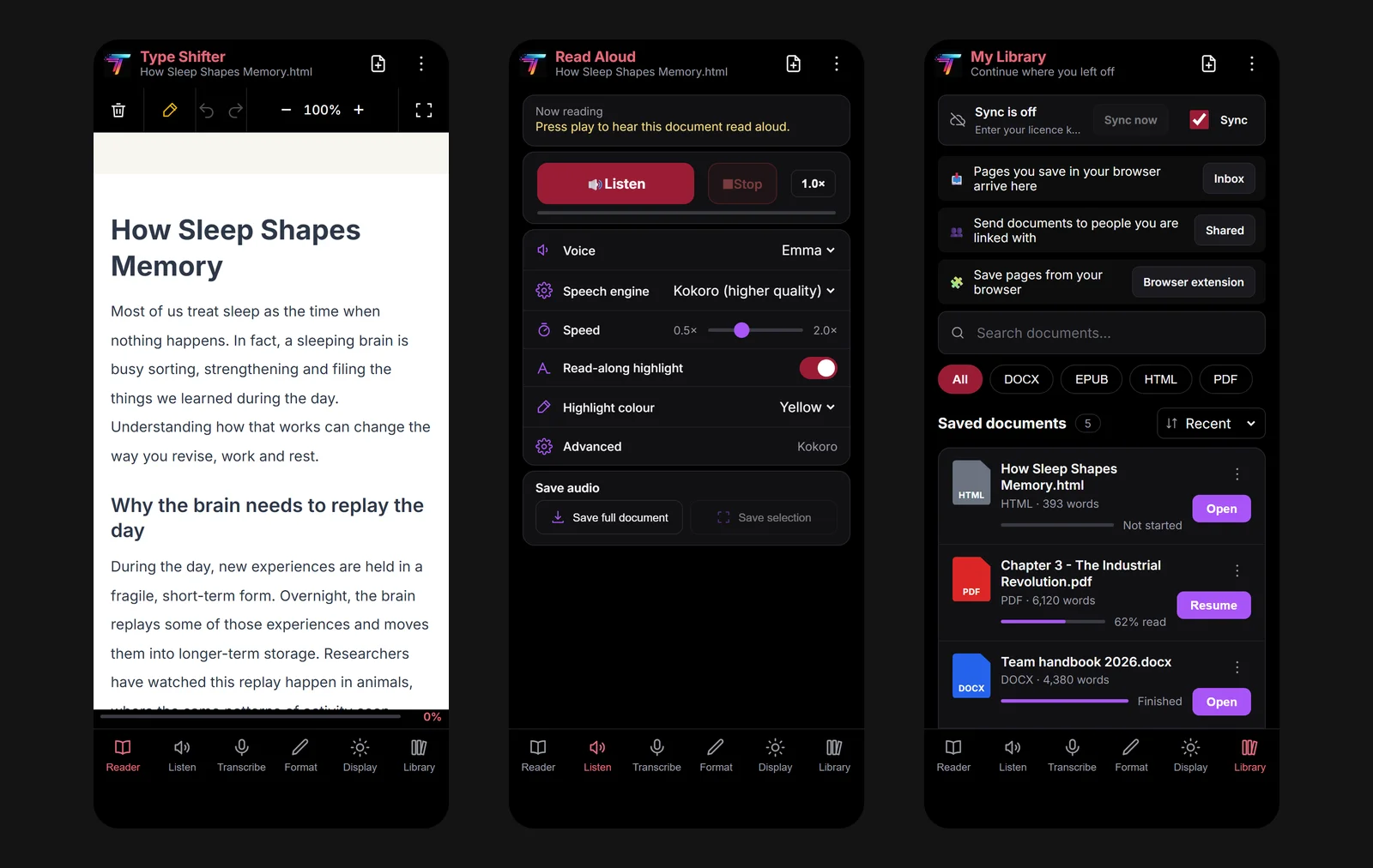
The phone layout is built around six tabs along the bottom of the screen: Reader, Listen, Transcribe, Format, Display and Library. Everything else, including the tools and the AI tools, lives behind the menu in the top corner, so the screen stays clear for the words.
Reader: a page that fits
Your document reflows to the width of the phone, so there is no sideways scrolling, ever. A slim toolbar sits above it for highlighting, undo and redo, making the text bigger or smaller, and going full screen. The progress bar along the bottom tells you how far through you are, which is surprisingly helpful when you are deciding whether to finish a chapter before your stop.
Listen: when your eyes need a rest
Press Listen and your document is read aloud, with the words lighting up as they are spoken so you can follow along. You choose the voice, the speed (anywhere from half speed to double), whether the read-along highlight is on, and what colour it is. Changes take effect straight away, with no Apply button to hunt for.
When you start listening, the app takes you to the Reader so you can watch the highlight move, and a small player floats above the tabs with play, pause and stop. You can wander off to change a setting or check your library and the player comes with you.
You can also save the audio: the full document, just a selection, or simply what you have heard so far. That gives you an MP3 to play later in any audio app, which is perfect for the gym or a long drive. If listening appeals, our guide to natural sounding text to speech and turning documents into MP3 audiobooks go into much more detail.
Library: carry on where you left off
The Library tab's subtitle says it all: continue where you left off. Every document is listed with its type, length and a progress bar showing Not started, a percentage, or Finished, with a Resume button to jump straight back in. Search, filter by type, and sort by recent, name, progress or length.
Make the Page Work for Your Eyes
A phone screen is small and often read in poor light, which is exactly when good reading settings matter most. The Format and Display tabs put the settings that help most people within easy reach.
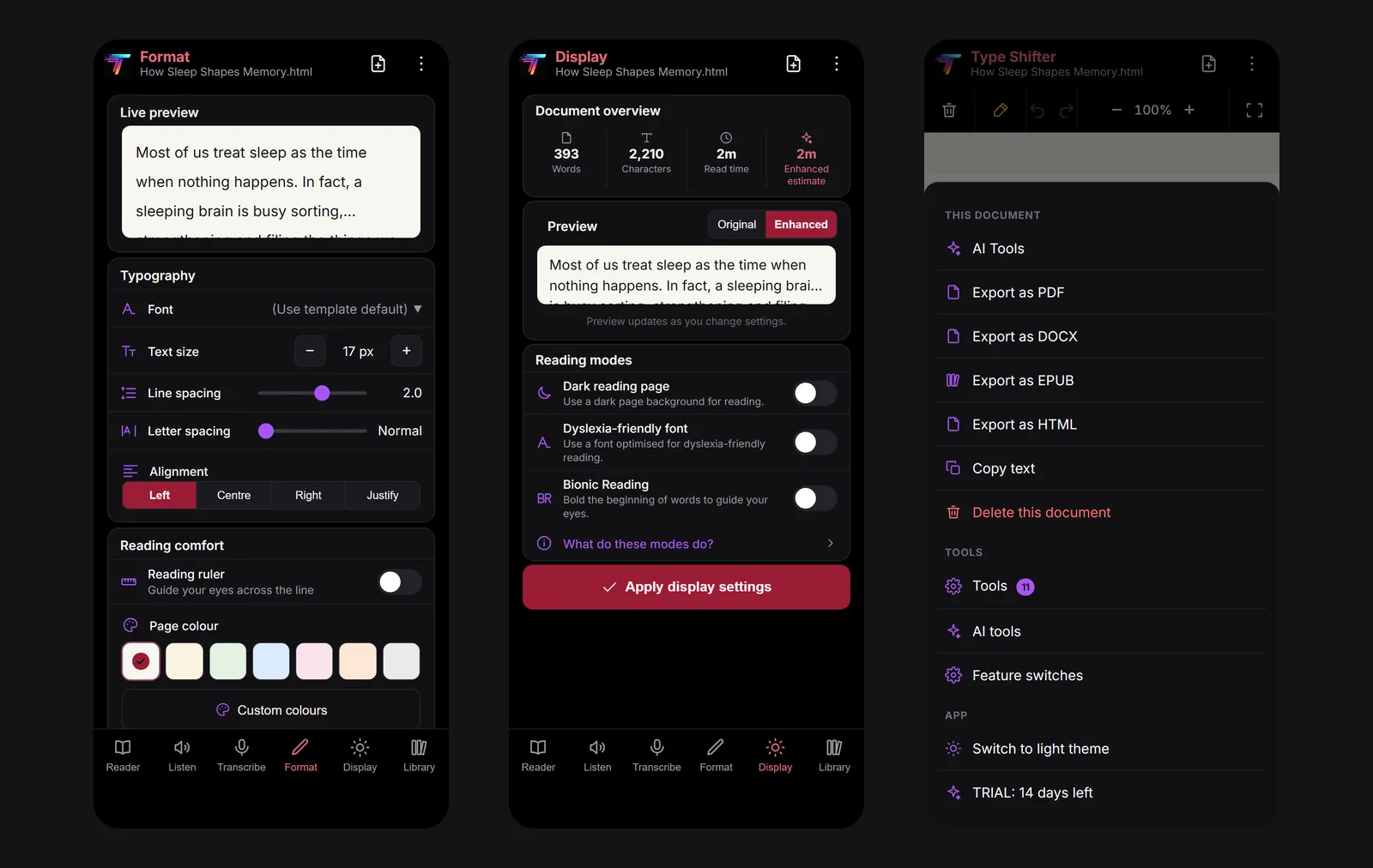
- Format covers typography (font, text size, line spacing, letter spacing and alignment) and reading comfort: a reading ruler that guides your eyes across the line, and a choice of page colours including cream, green, blue, rose, peach and grey. A live preview shows the result before you press Apply formatting.
- Display gives you a dark reading page, the dyslexia friendly font, and Bionic Reading with a strength slider from subtle to strong. An Original and Enhanced switch lets you compare your settings with the plain document, and a document overview tells you the word count and how long it will take to read.
If you are not sure where to start, how to make text easier to read walks through which settings help with dyslexia, ADHD and screen fatigue, and dark mode and eye strain covers reading late at night.
Tablets Get the Right Layout Automatically
Tablets are awkward. Held upright, they are really a large phone. Turned on their side, they are closer to a small laptop. Type Shifter now treats them that way. An upright tablet gets the phone layout, with big thumb friendly tabs, and a tablet held on its side gets the fuller desktop layout.
In the web app, if you turn your tablet round while you are in the middle of something, it does not yank the screen out from under you. A small bar offers to switch to the other layout, with a Not now button if you would rather carry on as you are. With nothing open, it simply switches for you.
Your Place, on Every Device
Here is where it all comes together. Start a report on your laptop at lunchtime, carry on reading on your phone on the way home, and finish it on the tablet in bed, each time at the point you stopped.
With your licence activated and sync switched on, your library documents (in their original formatting), your reading position and your highlights sync across up to three devices, with 250MB of space. Delete a highlight on your phone and it goes from your laptop too. Sync has its own switch in the library, so you decide which devices take part, and nothing is uploaded during your free trial.
If your documents need a bit of organising first, giving your reading a calm home with My Library covers folders, topics, stars and exportable highlights in the desktop app.
Send It Somewhere Else
Sometimes the best place to read a document is not your phone at all. Two tools, part of the Pro plan, help it get where it needs to go.
Send to Kindle
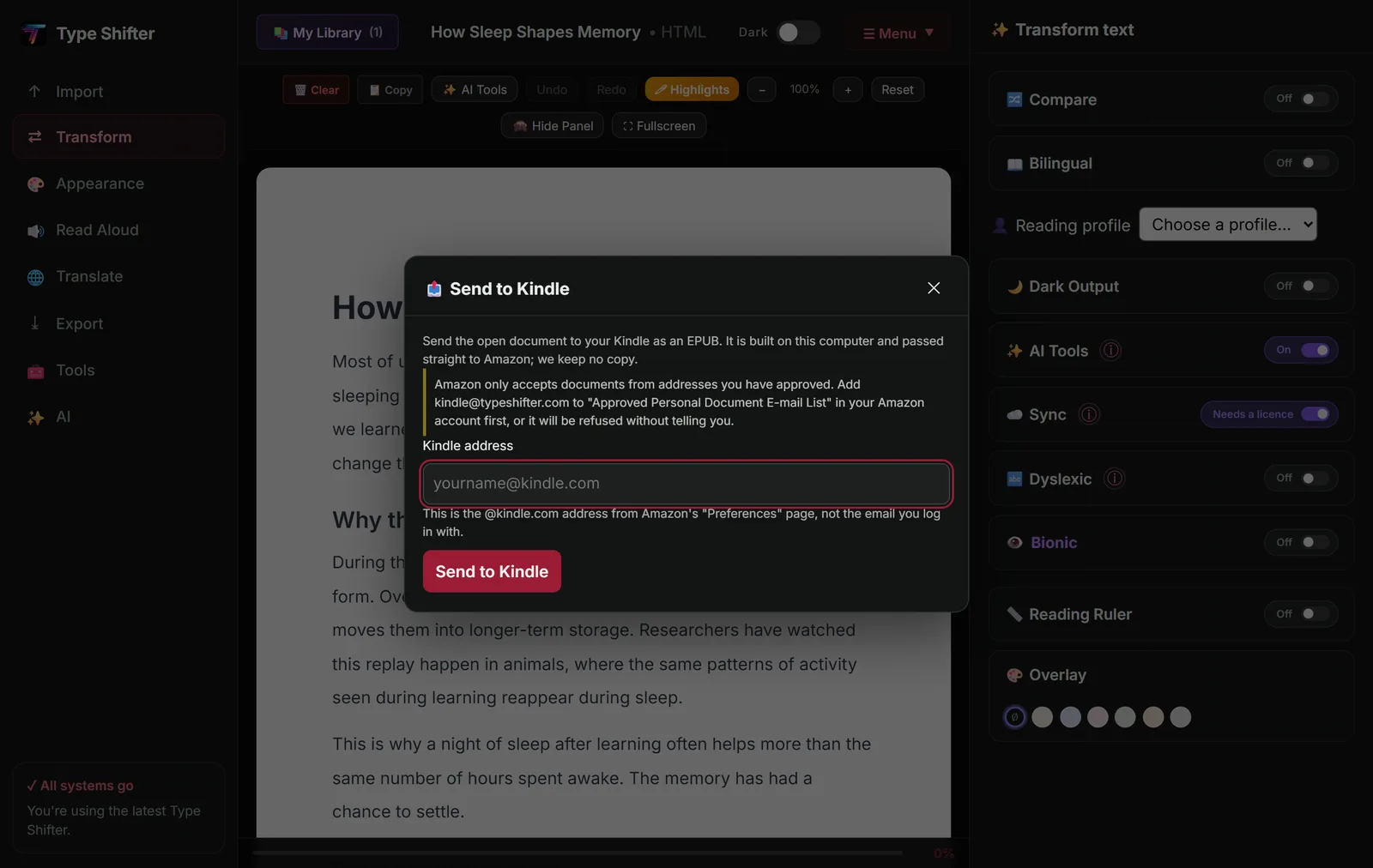
Long reports and ebooks are kinder on the eyes on an e-reader. Send to Kindle turns the open document into an EPUB on your device and passes it to Amazon, keeping no copy. You add [email protected] to the Approved Personal Document E-mail List in your Amazon account once, type in your Kindle address, and a few minutes later the document is on your Kindle.
Share with people you trust
Emailing attachments back and forth is clumsy, and uploading a personal document to a public link is worse. Type Shifter's sharing is built for the handful of people you actually swap reading with, such as a study partner, a colleague or a book club friend.
- Link once. One of you presses Show my code and gets six ordinary words, something like otter-lantern-basket-plum-window-ferry. The other types them in. The code works once and runs out after fifteen minutes.
- Send whenever. After that, press Send to on the export row, or Send this document in the Shared window, and the document arrives in their Inbox as an EPUB, pictures and all, marked with your name.
- Nothing personal travels. Your highlights, notes, reading position and study cards are never sent. The names you give people stay on your device and are never seen by us.
- No read receipts. You are never told whether someone opened or read what you sent. They import it if and when they choose, and anything they leave expires after thirty days.
- Easy to undo. Either of you can remove a link at any time, and the other person is not told.
Sharing is for adults, so the first time you use it, the app asks you to confirm you are over 18. It does not ask for or store your date of birth.
Speak and It Types, in the Android App
The Transcribe tab in the Android app turns your voice into text using your phone's own offline speech engine, so nothing is recorded, uploaded or stored. Say "comma", "full stop" or "new line" to punctuate as you go, then press Shift this text to turn it into a properly formatted document. It is ideal for capturing an idea on a walk or dictating a first draft when typing on glass feels like hard work. For transcribing whole recordings on your computer, see turning lectures and meetings into documents.
What Works Where
We would rather be clear than have you discover a gap on the bus. Here is how the phone apps compare with the desktop.
| Feature | Android app | Web app on a phone | Windows desktop |
|---|---|---|---|
| Reader, Format, Display and Library | Yes | Yes | Yes |
| Read aloud with read-along highlight | Yes | Yes | Yes |
| Highlights and notes, exports | Yes | Yes | Yes |
| Sync across devices | Yes | Yes | Yes |
| Voice typing (Transcribe tab) | Yes, offline | No | Transcribe & dictate tool |
| AI tools, Send to Kindle, sharing (Pro) | Yes | Yes | Yes |
| Audio overview, narrated video, batch export | No | Yes | Yes |
| Works without a connection | Yes, once activated | Needs a connection | Yes, once activated |
A Day With Type Shifter in Your Pocket
7.40am. On the train, you open the report you started yesterday on your laptop. It opens at your place. You highlight the figure you need for the ten o'clock meeting.
12.30pm. Lunch, but your eyes are tired from the screen. You press Listen, put your earphones in and hear the next section read aloud while you eat.
5.45pm. Stuck in traffic as a passenger. You save the rest of the chapter as an MP3 and listen on the way home.
9.30pm. You send the novel you are reading to your Kindle, switch your phone to the dark reading page, and the chapter your study partner shared is waiting in your Inbox for tomorrow.
None of that needed a desk, and none of it meant losing your place.
Put your reading in your pocket
Open the web app on your phone now, or download the Android app. Free for 14 days, then one payment of £29 covers your phone, tablet and computer.
Where to Go Next
If you are choosing between listening apps, our comparison of Speechify alternatives sets Type Shifter alongside the others honestly. If you are a student, the best free study tools for students shows how reading on your phone fits into revision. And if you want to turn what you read into something you can present, from document to presentation covers slides, narrated video and audio overviews.
Frequently Asked Questions
Is there a Type Shifter app for Android?
Yes. The Android app can be downloaded directly from the Type Shifter website today, and a Google Play listing is coming soon. Android will ask you to allow installs from your browser the first time. If you would rather not install anything, open the web app in your phone's browser and you get the same phone layout.
Do I have to pay again to use Type Shifter on my phone?
No. One £29 licence covers Windows, Android and the web app. You activate the Android app with the same licence key from your receipt, and one key can be used on up to three devices.
Will my phone remember where I got to on my computer?
Yes, if you switch sync on. With an activated licence, your library documents, your reading position and your highlights sync across up to three devices, with 250MB of space. Sync has its own on and off switch in the library, and nothing is uploaded during the free trial.
Can my phone read documents aloud?
Yes. The Listen tab reads any document aloud with a choice of voices, a speed control from half speed to double, and a read-along highlight in the colour of your choice. A small player stays on screen while you read, and you can save the whole document, a selection or just what you have heard as audio.
Does the Android app work offline?
Reading, formatting and the dyslexia friendly settings work on the phone itself without a connection, and so does read aloud once its voice has downloaded the first time. Activating your licence, syncing, the AI tools, Send to Kindle and sharing need the internet. The web app needs a connection to load.