Why Audio Piles Up and Text Does Not
A recording is a lovely thing to make and an awful thing to use. You cannot skim it, cannot search it, cannot see its shape, and cannot find the one sentence you actually wanted without scrubbing back and forth. It is stuck in real time, and real time is the one thing none of us has going spare.
Turn that same hour into text and every one of those problems goes away at once. You can scan it in a minute, search it for a name, highlight the three parts that matter, and throw away the rest with a clear conscience. The recording stops being a debt and becomes something you can actually use.
Transcribe: A Recording Becomes a Document
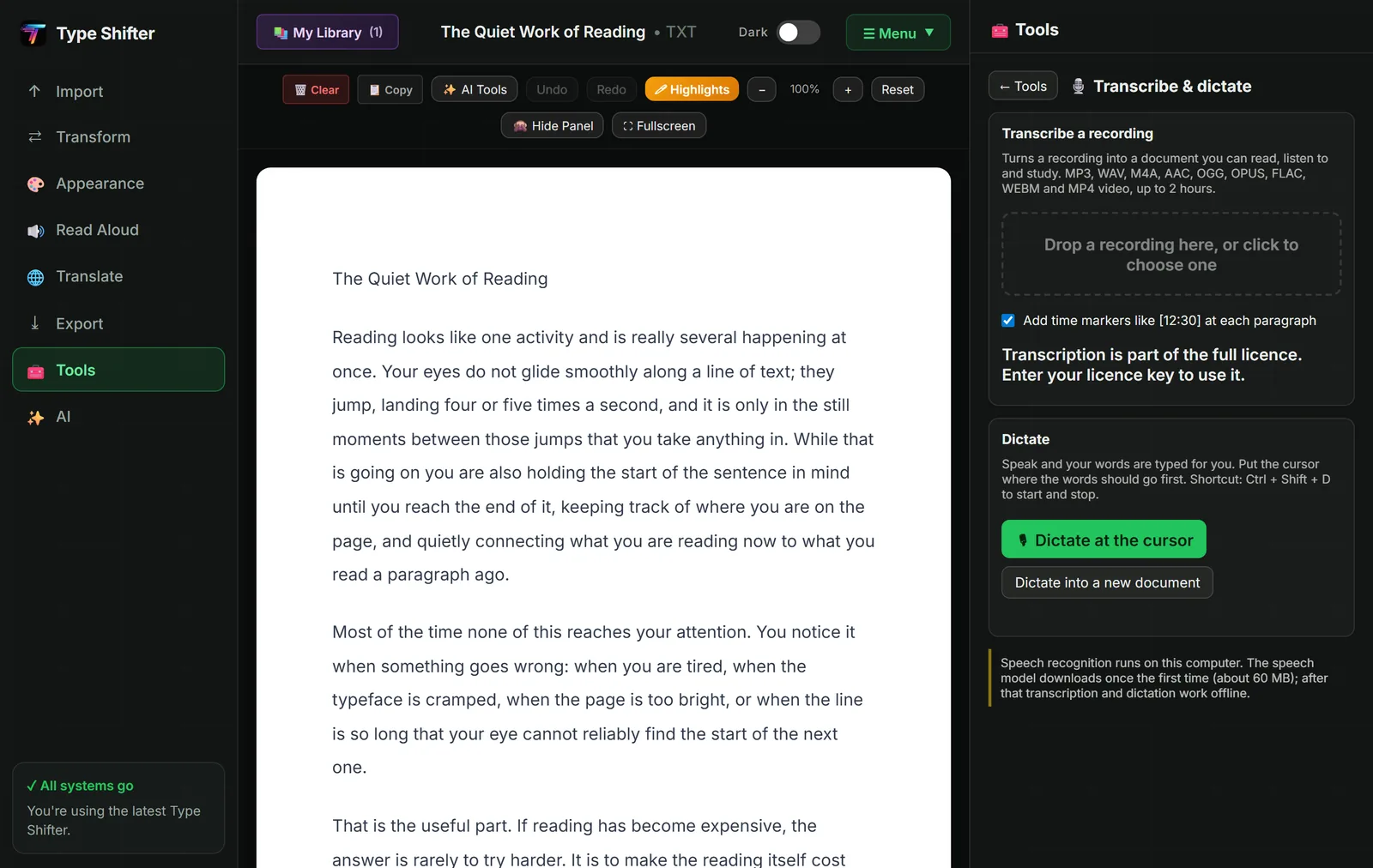
You drop a file in, or click to choose one. It takes MP3, WAV, M4A, AAC, OGG, OPUS, FLAC and WEBM audio, and MP4 video, up to two hours per file. A video works because its audio track is read out of it, so a recorded lecture or a screen recording of a meeting is no different from a voice memo.
The recording is decoded and then worked through in short chunks, one at a time, which is what keeps the app responsive and your computer's memory under control on a long file. You get a progress bar and an estimate of the time remaining. If you change your mind halfway, you can cancel and keep whatever has already been transcribed rather than losing the lot.
Leave time markers switched on and each paragraph is tagged with its position in the recording, like [12:30]. That turns the transcript into an index: find the bit you want in the text, then go straight to that point in the audio to hear the tone, the hesitation, or the thing the transcript did not quite catch.
When it finishes, Open as document puts the transcript through exactly the same path as any imported file. It joins your library, undo works, and every reading, formatting, highlighting, AI and export tool treats it like any other document. You can also just save it as a plain TXT file.
Where the recording goes: nowhere
Speech recognition runs on your own machine. The speech model downloads once, around 60 MB, and after that transcription and dictation work with no internet connection at all. Your audio is never sent to us or to anybody else, which is the difference between a tool you can use for a supervision session and one you cannot.
Why on-device matters more here than almost anywhere
Most free transcription services work by taking your file. For a podcast you were going to publish anyway, fine. For a recorded disciplinary meeting, a client session, a research interview with a consent form attached, or a call with your solicitor, it is a genuine problem, and if you handle other people's personal data professionally it is a data protection decision whether or not anybody framed it that way.
A tool that never sends the file removes the question instead of answering it. It is the same principle behind the PDF tools that never upload anything, and for the same reason.
What to expect from the accuracy
Honest answer: very good on one clear speaker in a quiet room, and noticeably weaker as conditions get worse. Crosstalk, background noise, poor phone audio, strong accents the model has met less often and specialist vocabulary all cost accuracy. Names and technical terms are where you will find most of the errors.
Treat the transcript as an excellent first draft, not a record of what was said. Read it through before you rely on it. That is still a fraction of the work of typing it yourself, which is the entire point.
Dictate: Talk Instead of Typing
The same panel does the reverse job. Put your cursor where the words should go and dictate straight into the document you already have open, or start a fresh one and fill it by speaking. Ctrl + Shift + D starts and stops it.
This is not only a convenience feature. For anyone with a repetitive strain injury, limited hand mobility, or dyslexia that makes spelling a bottleneck between the idea and the page, speaking is often the difference between getting a draft out and not. And it uses the same on-device recognition, so nothing you say leaves your computer.
Then It Is Just a Document, and Everything Works on It
This is the part people underestimate. Once your recording is text, the whole toolbox opens.
- Break it into sections, because a raw transcript is a wall of text and headings make it navigable.
- Highlight the parts that matter, then turn those highlights into notes or flashcards. Our guide to flashcards, quizzes and study packs picks up from there.
- Ask it questions. "What did we agree about the deadline?" is a much better way into an hour of meeting than scrolling. Every answer cites the passage it came from, as chat with your documents explains.
- Read it with your own settings, with focus modes and a reading profile if a wall of transcript is hard going.
- Export it as PDF, DOCX, EPUB, Markdown or HTML, or send it to somebody.
The Other Direction: Documents That Read Themselves to You
Transcription turns sound into text. The rest of this article is about going the other way.
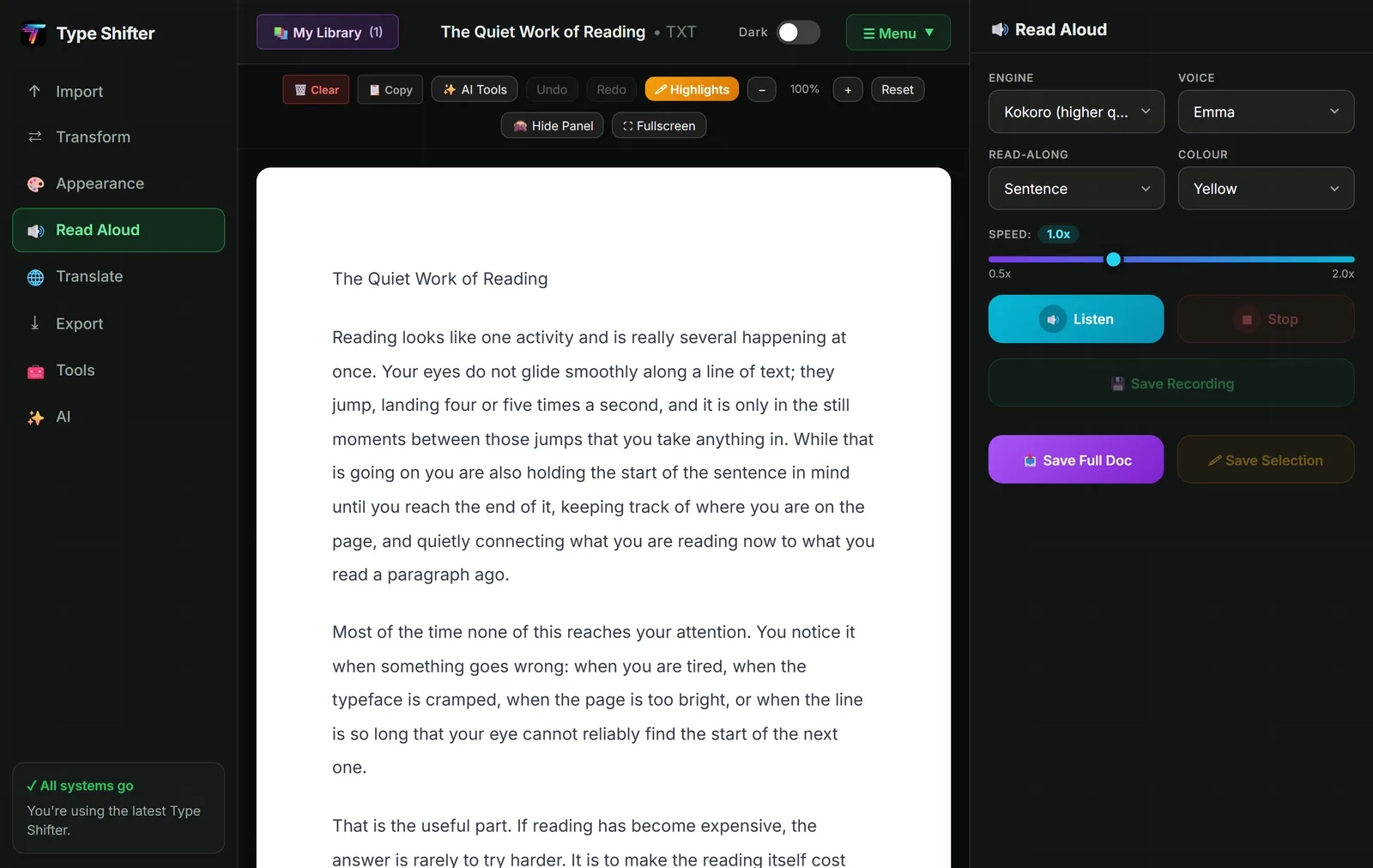
Type Shifter reads documents aloud with neural voices in 49 languages, British and American, male and female. The read-along setting is the one to pay attention to: as the voice speaks, the current word or sentence is highlighted on the page in a colour you choose. Reading and listening at the same time is, for a great many people, more effective than either alone, because the two channels prop each other up when one is struggling.
The speed runs from 0.5x to 2.0x. Slow it down for something dense, speed it up for something you are only checking. And three save buttons turn any of it into an MP3: the whole document, just the passage you have selected, or a recording of what you have listened to.
We have written at length about the voices in listening to documents with neural text to speech, about the MP3 side in saving documents as MP3 audiobooks, and about how it compares with the paid options in seven Speechify alternatives.
Reading aloud as a proofreading tool
One use worth singling out. Your eyes skip your own typos because your brain already knows what the sentence is supposed to say. Your ears do not have that luxury. Having your own writing read back to you catches missing words, doubled words and sentences that collapse halfway through, all of which silent rereading sails straight past. The read aloud proofreading trick is one of the cheapest quality improvements available to anybody who writes.
Audio Overviews and Narrated Video
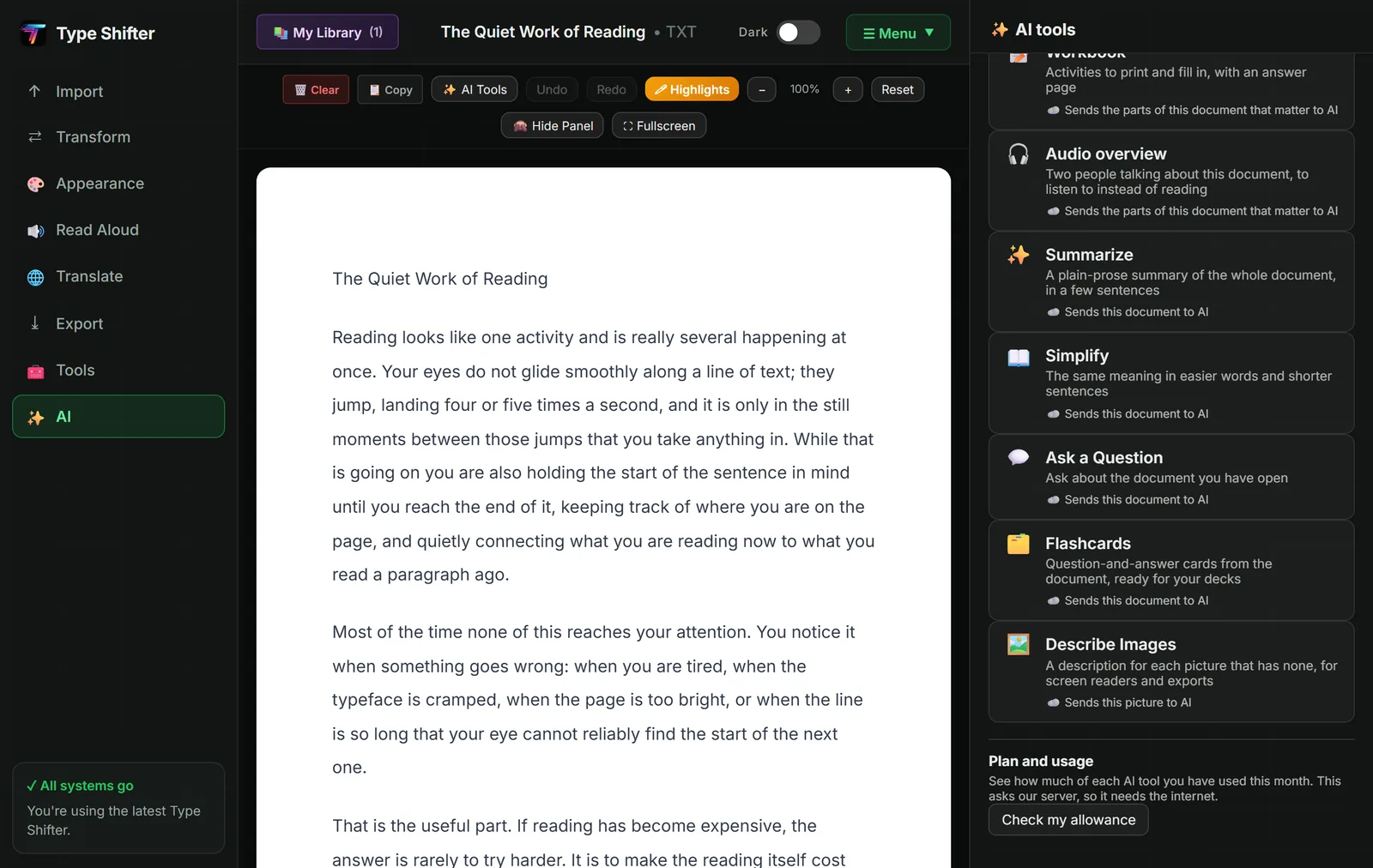
An audio overview turns a document into a short spoken discussion, as though two people were talking it through, using the voices already on your computer. It is not the document read out. It is the document explained, which is a different and often more useful thing when you are walking the dog and trying to get the gist of a report before a meeting.
A narrated video goes further: slides with a voice over them. The narration is written by the AI, and the video itself is put together on your own computer.
Both are AI tools, so they use your Pro allowance, and both say so before they do anything. Read Aloud, MP3 export and the audiobook export do not: those run on your device and are part of the app.
Two Workflows Worth Stealing
| Situation | What to do | Roughly how long |
|---|---|---|
| A recorded lecture you need to revise from | Transcribe with time markers on, open as a document, break into sections, highlight what you could not repeat tomorrow, turn the highlights into flashcards | 20 minutes for a 50 minute lecture |
| An hour-long meeting with no minutes | Transcribe, then ask the document what was agreed and who is doing what, checking each answer against the passage it cites, and export the result as a DOCX to circulate | 15 minutes |
| A report you have to absorb before Monday | Ask for an audio overview, listen on the walk, then read only the sections it flagged as important | The walk you were taking anyway |
| A draft you have written and cannot see straight | Read Aloud at 0.9x with sentence highlighting on, and fix everything that makes you wince | The length of the draft |
If concentration is the problem, not time
Listening is a legitimate way of taking something in, not a lesser substitute for reading it. On the days when your eyes will not cooperate, an audio overview or an MP3 keeps you in contact with the material, and that is far better than the nothing that is the honest alternative. Reading with brain fog was written for exactly those days.
What It Costs
Full transcription and dictation are part of the licence, which is a one-off £29 rather than a subscription, and there is no per-minute charge no matter how many hours you put through it. The free version that follows the 14-day trial still transcribes English, on your device, up to 2,000 characters per document. Read Aloud, MP3 recording and the audiobook export are part of the app too. Audio overviews and narrated video are AI tools and sit in Pro, at £9.99 a month or £99.99 a year. Everything is free to try for 14 days.
One platform note, stated plainly. The Windows app runs transcription through a bundled service; the browser runs it with a speech model inside the page. Both work on your own device, and neither sends your recording anywhere.
Start with the oldest recording in the folder
The one you have been meaning to listen back to since March. Twenty minutes and it is a document you can search. Free for 14 days.
Where to Go Next
For the reading settings that make a long transcript bearable, see focus modes, speed reading and reading profiles. For turning a transcript into revision material, see flashcards, quizzes and study packs. And if you need to send the finished thing out looking right, brand kits, batch export and the reference manager covers the delivery end. To keep listening away from your desk, Type Shifter on your phone and tablet covers read aloud, the mini player and saving audio on the move.
Frequently Asked Questions
Is the transcription uploaded to a server?
No. Speech recognition runs on your own computer. The speech model downloads once, about 60 MB, and after that transcription and dictation work with no internet connection at all. Your recording is never sent anywhere, which is what makes it usable for confidential meetings, interviews and clinical notes.
What audio and video files can it transcribe?
MP3, WAV, M4A, AAC, OGG, OPUS, FLAC and WEBM audio, and MP4 video, up to two hours per file. A video is handled by reading its audio track, so a recorded lecture or a screen recording of a meeting works just as well as a voice memo.
How accurate is it?
Very good on a clear single speaker in a quiet room, and noticeably weaker on crosstalk, strong background noise, poor phone audio and unfamiliar technical vocabulary. Treat the transcript as an excellent first draft rather than a record of what was said, and read it through before relying on it for anything important.
Can I dictate instead of typing?
Yes. Put the cursor where the words should go and dictate straight into the document, or dictate into a brand new one. Control, Shift and D starts and stops it. It uses the same on-device speech recognition, so nothing you say leaves your computer.
What is an audio overview?
A short spoken discussion about the document, as though two people were talking it through, using the voices already on your computer. It is designed for listening instead of reading, which is useful on a commute or on a day when reading is not going to happen. It is one of the AI tools, so it uses your Pro allowance.
Can I save a document as an audio file?
Yes. You can save a recording of the whole document, just the part you have selected, or an audiobook export, as an MP3 you can put on a phone or a music player. The voices run on your device and there is no per-minute charge.
Does it handle more than one speaker?
It transcribes everything it hears, but it does not label who said what. On a two-person conversation the turns are usually easy enough to follow from the content; on a busy meeting with people talking over each other, expect to do some tidying. Time markers help a great deal here, because you can go back to the audio for anything ambiguous.