Why Uploading Is the Part Nobody Mentions
Free online PDF converters are genuinely useful, and most of them are run by perfectly decent people. The problem is structural rather than moral. To do the work, they need your file, which means a copy of your document sits on a machine you do not control, for a period you cannot verify, reachable by people you will never meet.
For a train timetable, who cares. For a payslip, a tenancy agreement, a set of medical letters, a passport scan, a safeguarding report or anything with a client's name on it, that is a different conversation. If you handle other people's personal information as part of your job, it is also a conversation with the Information Commissioner's Office waiting to happen, because sending personal data to a third party service is a processing decision whether or not anybody thought of it that way.
The cleanest answer is not to read the small print more carefully. It is to use a tool that never needs the file in the first place.
How this works
Every PDF tool in Type Shifter runs on your own computer, inside the app or inside your browser tab. Your file is opened locally, changed locally, and saved locally. There is no upload step, so there is nothing to delete afterwards and nothing to trust.
The Tools, and What Each One Is For
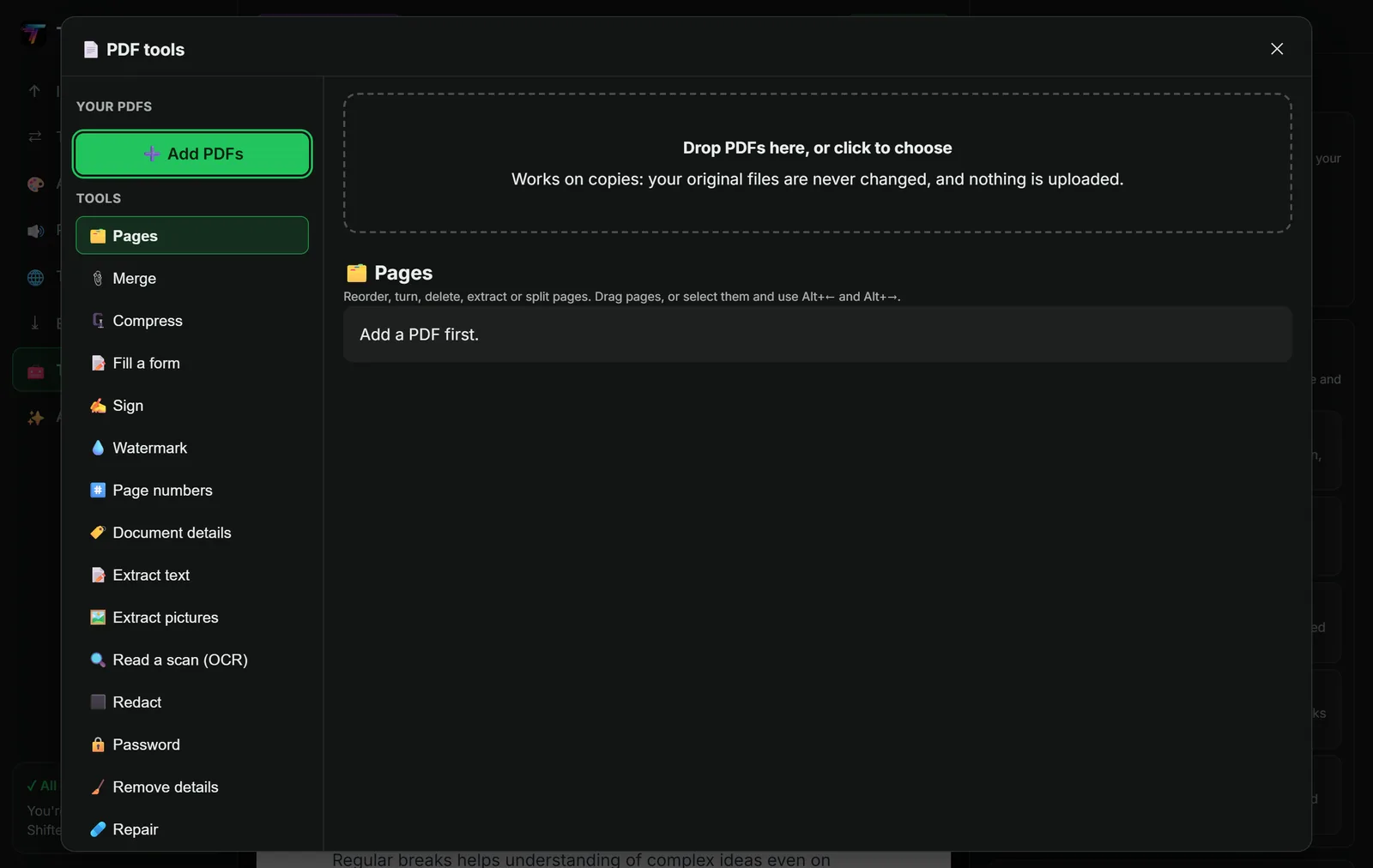
Pages: reorder, rotate, delete, extract and split
A grid of page thumbnails you can drag into a new order, turn the right way up, select and delete, pull out into a separate file, or split into several documents. Nothing is written until you press save, and there is proper undo and redo inside the workspace, so experimenting is safe.
This single tool quietly replaces about four of the things people usually go to a website for.
Merge: join files in the order you choose
Up to twenty PDFs at a time, combined in the order you arrange them. Pages keep their content, rotation, links and form fields. Handy for expense claims, evidence bundles, scanned chapters and the eternal task of turning six separate attachments into one sensible document.
Compress: three strengths, and it never makes things worse
Light, Balanced and Strong. Light restructures the file without touching image quality at all, which often takes a surprising amount off on its own. The stronger settings work on the images, which is where the weight usually lives in a scanned document. The rule built into it is that compression is never allowed to produce a bigger file than it started with.
Redact: the one people get wrong
This deserves real attention, because the common mistake here has ended careers and cost organisations a great deal of money.
Drawing a black rectangle over text does not remove the text. The rectangle is a shape painted on top of the page. The words are still sitting in the file underneath it, and anyone can select them, copy them out or extract them with a free tool in about ten seconds. Every few months a public body publishes a document redacted this way and learns the lesson in the newspapers.
Type Shifter does not offer that version at all. You draw boxes over what must be hidden, and the tool produces a copy in which the affected pages are rendered as images with the boxes painted solid, so the text genuinely is not in the file any more. Then it reopens the result, checks those pages for any text left behind, and tells you what the check found. You get confirmation, not a hope.
Before you send a redacted PDF
Open your redacted copy, press Ctrl+A to select everything and Ctrl+C to copy, then paste into a text editor. If anything you hid appears in the paste, the redaction failed. Do this once with a black box drawn in another app and you will never trust a black box again.
Sign: for the forms that just want a signature on them
Draw your signature with a mouse, trackpad or finger, or type your name and choose a style. Place it on the page, move it, resize it, and save it into a copy. Your signature is only kept on your computer if you tick Remember, and it is never sent anywhere.
One honest caveat, which the tool itself makes too: this adds a picture of a signature, not a certified digital signature. For the school consent form, the delivery authorisation and the vast majority of everyday paperwork, a picture is exactly what is being asked for. If a contract specifically requires a cryptographic certificate, you need dedicated signing software and you should not pretend otherwise.
Fill a form: type into the boxes instead of printing it
PDF forms with real fields are shown as an ordinary form you can type into. Text boxes, tick boxes, radio buttons, dropdowns and lists all work, and you can flatten your answers into the page so they cannot be edited afterwards. That is the end of printing a form, filling it in by hand, and photographing it at an angle in bad light.
Password: add or remove AES-256 protection
Put a password on a PDF before you email it, or take one off a document you have the password for. Useful for anything going to an accountant, a landlord or a solicitor, and worth remembering that emailing the password in the same message as the file defeats the entire exercise.
Remove details: the metadata nobody thinks about
PDFs quietly carry information about where they came from: the author name, the software used, the original file's title, and hidden XMP metadata. Any of it can be revealing in ways you did not intend, especially if the document is going to someone who should not know who wrote it. This tool strips all of it out, deleting the metadata stream itself rather than merely unlinking it. There is a companion tool for reading and setting those details deliberately when you do want them there.
Repair, watermark, page numbers and extraction
A damaged PDF that will not open can often be rebuilt. A watermark can be stamped across every page or just the pages you choose. Page numbers can be added to a PDF that never had them. And you can pull out the text page by page, or extract every picture in the document as separate image files.
OCR: Making a Scanned PDF Genuinely Usable
A scanned PDF is a stack of photographs of paper. It looks like a document, but you cannot search it, cannot copy from it, cannot have it read aloud, and a screen reader finds nothing in it at all.
OCR fixes that, and Type Shifter gives you two ways to take it:
- Just the text, if you want the words to copy, edit or paste somewhere else.
- A searchable copy, which looks exactly like the original, with every recognised word written invisibly in the right place behind the image. The pages look identical, but now the document can be searched, selected, copied and read aloud.
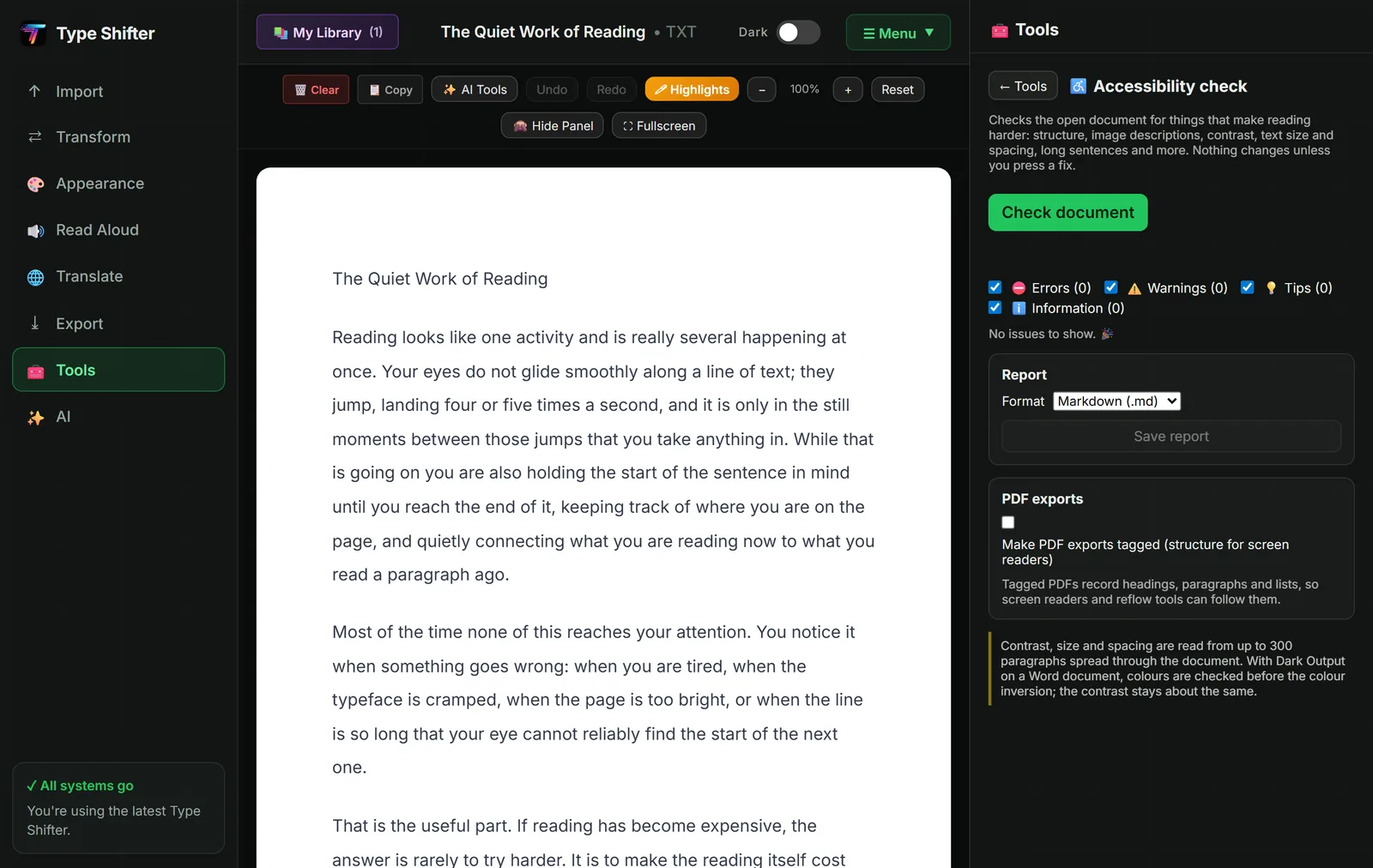
That second option is one of the kindest things you can do to a document before sending it to anybody. An inaccessible scan becomes a document that works with a screen reader, which is precisely what the Web Content Accessibility Guidelines are asking for. Our plain English accessibility checklist covers the rest of it, and if you only need words out of a photograph, the free image to text tool does that on its own.
Everything Else That Arrived With Them
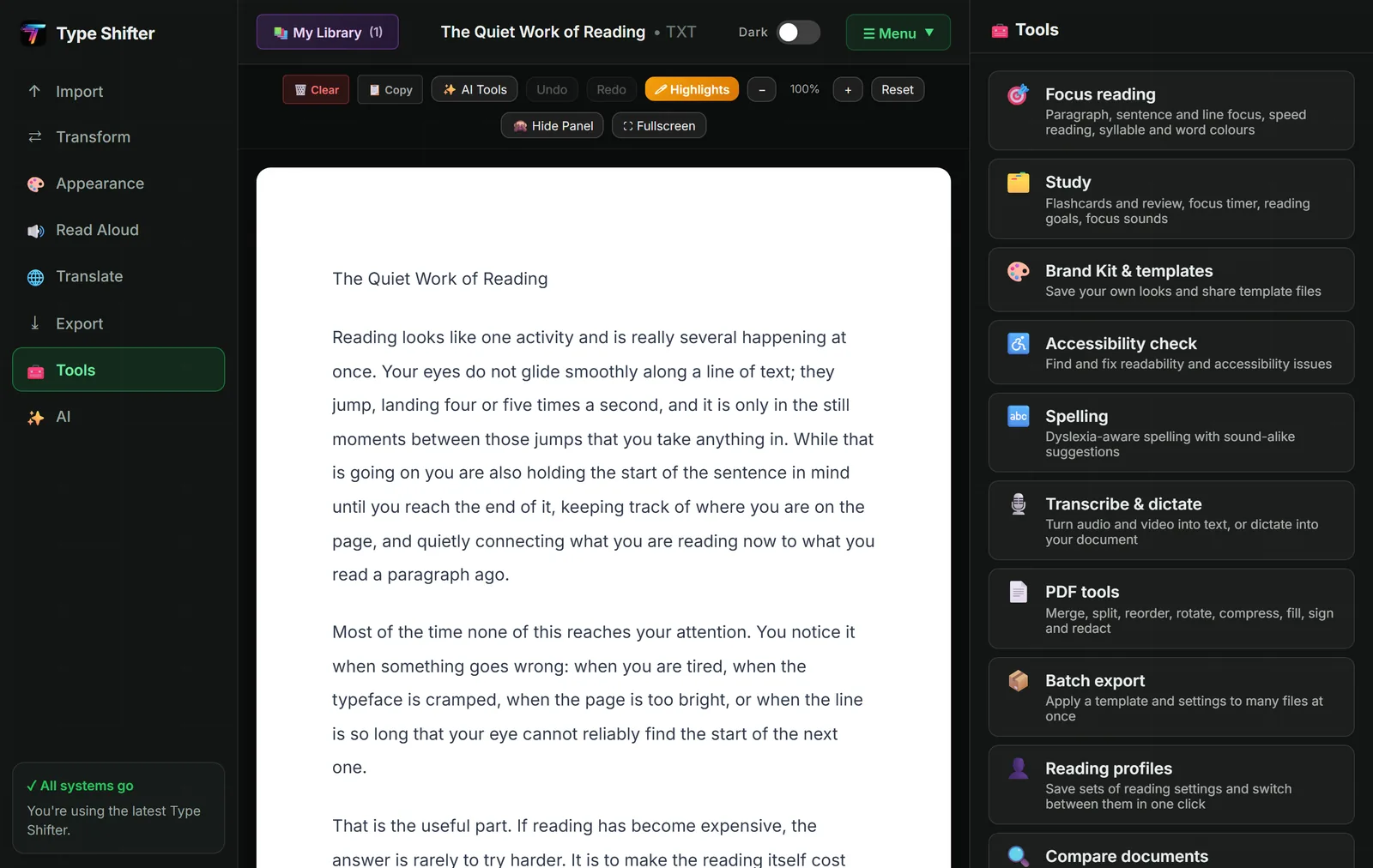
The PDF workspace came as part of a much bigger release, and several of its neighbours are worth knowing about.
| Tool | What it does | Where it runs |
|---|---|---|
| Batch export | Apply one look and one format to a whole folder of documents in a single run, with a report at the end | Your device |
| Transcribe and dictate | Turn an audio or video file into a document, or dictate straight into the one you have open | Your device |
| Spell check | A dictionary with a curated list of the misspellings dyslexic writers actually make | Your device |
| Accessibility check | Contrast, alt text, vague link text, heading order and reading level, with fixes offered | Your device |
| Check and tidy the layout | Finds crooked spacing, stray page breaks and headings that do not match, with no AI involved | Your device |
| Compare documents | Two versions side by side with every addition, deletion and change marked | Your device |
| Brand kit | Your colours, fonts, logo and footer line applied consistently to everything you export | Your device |
| Reading profiles | Named sets of reading settings, such as Study or Evening, applied in one click | Your device |
| References | Build a reference list from a DOI, an ISBN or a web address, in APA, Harvard or MLA | Looks up online |
| Send to Kindle | The open document to your Kindle as an EPUB | Sends the file |
New import and export formats came with the same release: PowerPoint, spreadsheets and ODT can now come in, and documents can go out as Markdown, PNG, PowerPoint or an audiobook, alongside the existing PDF, DOCX, EPUB, HTML and MP3. The full run through lives in exporting a Word document to PDF, EPUB and HTML for free.
The Limits, Stated Plainly
- File size: up to 200 MB per PDF, 20 files per merge, 2,000 pages. Because it runs locally, the real constraint is your own computer's memory rather than anybody's upload cap.
- Encrypted files: a password protected PDF has to be unlocked with its password first, which is how it should be.
- XFA forms: these old Adobe forms are not supported, and you get a plain message saying so rather than a mysterious failure.
- OCR accuracy: excellent on clean printed text, variable on handwriting, heavy fonts and poor photographs. Straighten the page and improve the light and it improves dramatically.
- Signatures: a picture, not a certificate, as above.
Try it on the PDF you were about to upload somewhere
Open it, do the thing, save it. No account, no upload, no wondering where the file went. Free for 14 days.
Where to Go Next
If the AI side is what interests you, chat with your documents covers asking a file questions and getting answers that cite their source. For students, turning any document into flashcards, quizzes and a study pack is the companion piece.
And once your PDF is in good shape, you might want to listen to it rather than read it. Turning a PDF into an audiobook for free takes it from there, or try the free web page to PDF converter and Word to EPUB converter if that is the direction you are heading.
Frequently Asked Questions
Why does it matter whether a PDF tool uploads my file?
Because uploading means handing a copy of the document to somebody else's computer. For a holiday itinerary that hardly matters. For a payslip, a tenancy agreement, medical letters, a passport scan or a client file it matters a great deal, and free sites vary enormously in how long they keep files and who can reach them. A tool that never uploads removes the question entirely.
Is drawing a black box over text the same as redacting it?
No, and this is one of the most common and most damaging PDF mistakes there is. A black rectangle is drawn on top of the page while the text stays in the file underneath, so anyone can select it, copy it or extract it. Proper redaction removes the text itself. Type Shifter never offers the black box version, and it checks the finished file for leftover text and tells you what it found.
Can I make a scanned PDF searchable?
Yes. OCR reads the words off each scanned page and can write them back invisibly behind the image, giving you a copy that looks identical but can be searched, selected, copied and read aloud by a screen reader. It is one of the single kindest things you can do to an inaccessible document.
Is the signature tool a legally binding digital signature?
No, and the tool says so plainly. It places a picture of a signature on the page, which is what most everyday forms actually ask for. A certified digital signature with a cryptographic certificate is a different thing, and if a contract requires one you need dedicated signing software.
What are the size limits?
The PDF tools open files up to 200 MB, merge up to 20 files at a time and handle up to 2,000 pages. Because everything runs locally, the practical limit is your own computer's memory rather than anybody's upload allowance.
Do the PDF tools cost extra?
No. They are part of the app, which is a one off £29 licence rather than a subscription, and you can try everything free for 14 days first. The optional Pro subscription covers the AI tools only, and none of the PDF tools need it.
Do they work offline?
Yes. Once the app has loaded, the PDF tools, OCR, spell check, translation, text to speech and every export need no internet connection at all, because none of them ever sends your file anywhere.