The Short Version
Type Shifter has always been a reading app first. Bionic Reading, OpenDyslexic, dark mode, 150 templates, text to speech in 49 languages, OCR for photographs, and exports to PDF, DOCX, EPUB and MP3. All of that is exactly where it was, and it still runs on your device.
What is new is a layer of AI tools sitting alongside it, and a much bigger toolbox underneath. Close to forty features arrived over the course of this year, and the ones people notice first are the AI ones: chat with a document, chat with your whole library, explain any sentence you select, build a glossary, compare five files at once, rewrite a paragraph, check the grammar a dictionary cannot catch, and have your own argument read back to you with honest comments.
Here is the part that matters most, and the part every other section of this article rests on. Nothing goes anywhere unless you press an AI button. Reading, formatting, listening, translating, OCR and every single PDF tool run on your own machine and send nothing to anyone.
The one line summary
AI that helps you read and think, rather than AI that writes for you and hopes you do not check. Every answer points back at the passage it came from.
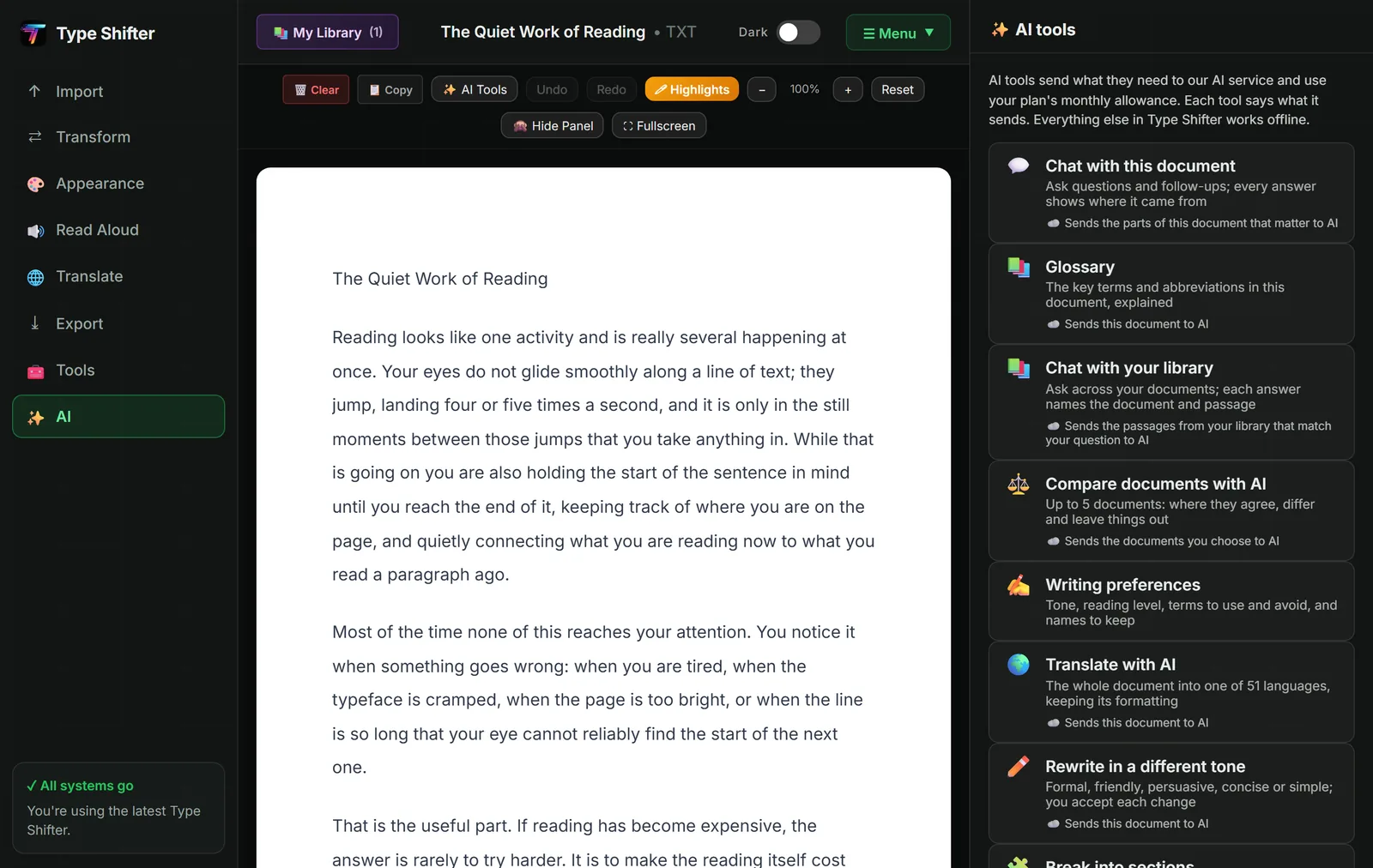
Ask a Document a Question, and See Where the Answer Came From
The most useful tool in the new set is also the simplest. Open a file, type a question in plain English, and get an answer drawn from that document rather than from the internet.
Plenty of tools do something like this. The difference here is what comes back with the answer. Every reply carries the passage it was built from, so you can click through, land on the original sentences, and judge for yourself whether the answer is fair. That single design decision changes the whole relationship. You are not handed a confident paragraph and asked to trust it. You are handed a shortcut to the right part of the document, with the answer as a bonus.
It is the difference between an assistant who says "page 34 says this, have a look" and one who says "trust me". If you are reading a tenancy agreement, a set of meeting minutes, a council policy or a research paper, the first one is worth a great deal more than the second.
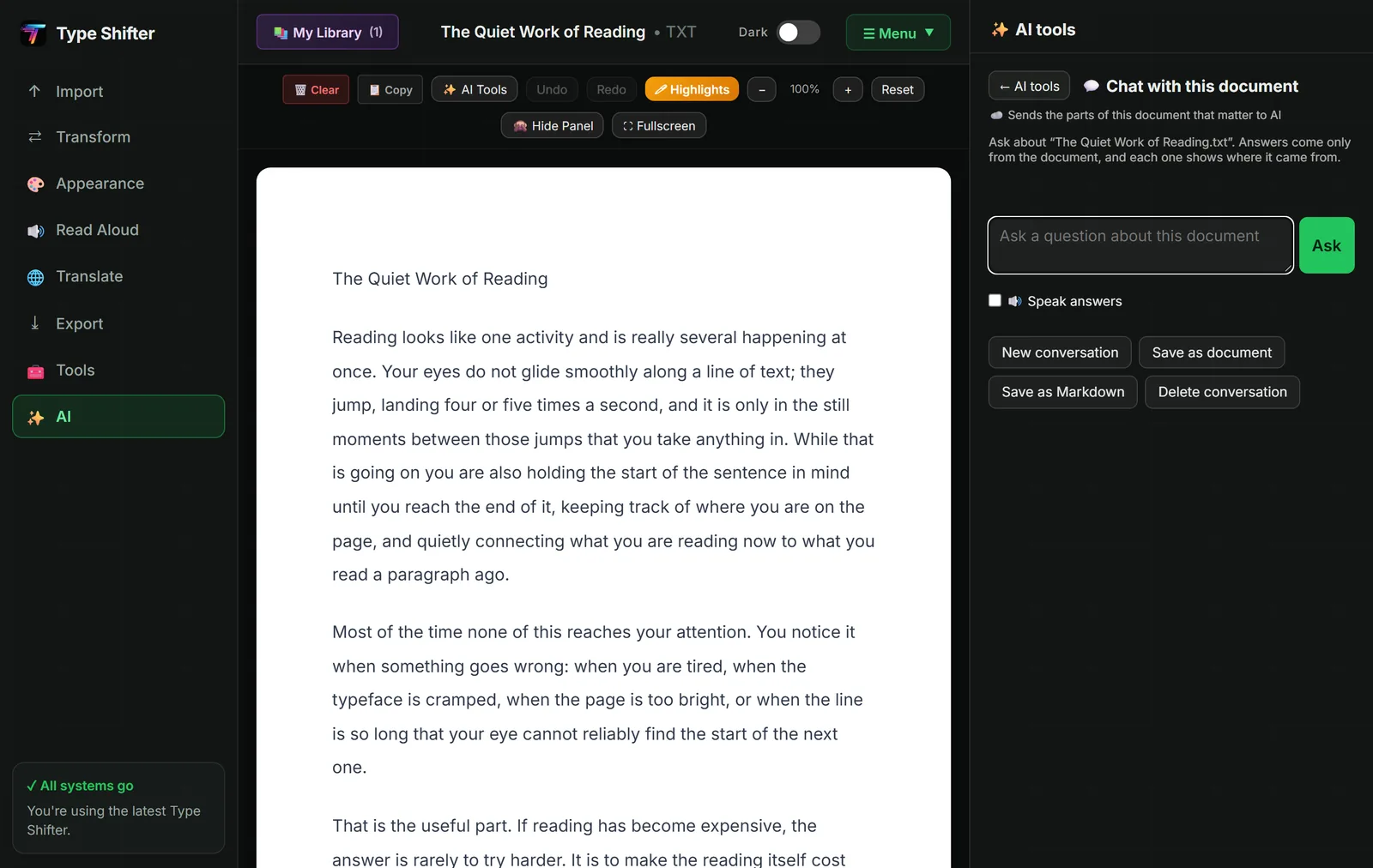
Chat with your whole library, not just one file
The version most people underestimate is the one that searches everything you have saved. You half remember reading something about late payment terms, and you cannot remember which of the eleven documents it was in. Rather than opening them one at a time, you ask the library.
Your library syncs across up to three devices when you hold a licence, so the thing you saved on your laptop in March is findable from your phone in September. If you like the idea of a personal reading archive that answers back, our guide to building a modern read later workflow pairs neatly with this.
Compare up to five documents in a table
This one earns its place the first time you use it. Put up to five files in and get back a table showing where they agree, where they differ, and what one of them leaves out entirely.
Three quotes for the same job. Two drafts of a contract and the version your solicitor sent back. Four papers on the same research question. A policy as it was last year and as it is now. The gaps are usually the interesting part, and gaps are exactly what we miss when we compare things from memory while scrolling.
Tools for the Words You Get Stuck On
Explain a selection, at three depths
Highlight anything, from a single word to a dense paragraph, and press Explain. You get a plain explanation, and you can ask for it simpler or fuller depending on how much you already know.
This is the tool I use most, and the one I would defend hardest. It removes the moment where you hit a sentence you do not understand, decide to come back to it, and never do. That moment is where a lot of reading quietly dies, and it happens far more often when you are tired, unwell, or reading outside your own field.
Explain is also the free one. Thirty uses a month with no subscription of any kind, because somebody meeting a word they do not know should not be met with a paywall.
The picture dictionary
Select a word and get a card: a simple meaning, an example sentence, the word broken into syllables, and a picture. It was built with younger readers and language learners in mind, and it has turned out to be just as welcome for adults reading in a second language or wading through unfamiliar technical vocabulary.
A glossary for the whole document
Rather than looking words up one at a time, ask for a glossary and get every hard word in the document listed A to Z with a plain meaning beside it. Read that first and the document stops being a series of small ambushes.
It works beautifully alongside the approach in how to read academic papers faster, where knowing the vocabulary before the first pass is half the battle.
Tools for When You Are the One Writing
Reading and writing are the same job seen from two sides, so the new tools go both ways.
Rewrite, with nothing changed until you say so
Select a paragraph and ask for it formal, friendly, persuasive, concise or simpler. You see the suggestion first. Your document is not touched until you accept it. That ordering is deliberate and it is not going to change, because a tool that edits your work and then tells you about it afterwards is a tool you have to police.
Grammar, the kind a dictionary cannot catch
Type Shifter already has a spell checker that runs on your device, with a curated list of the misspellings dyslexic writers actually make. What no spell checker can do is notice that you wrote "their" when you meant "there", or "would of" when you meant "would have". Every one of those is a real word, so the dictionary waves it straight through. The grammar check catches them.
Review my argument
This one comments on your writing and changes nothing at all. It tells you where a claim has no support, where you have said the same thing twice in different words, and where a reader is likely to disagree and find nothing to answer them. It does not judge your conclusion and it does not grade you. It reads like a thoughtful colleague rather than a marker with a red pen.
Writing preferences that make it sound like you
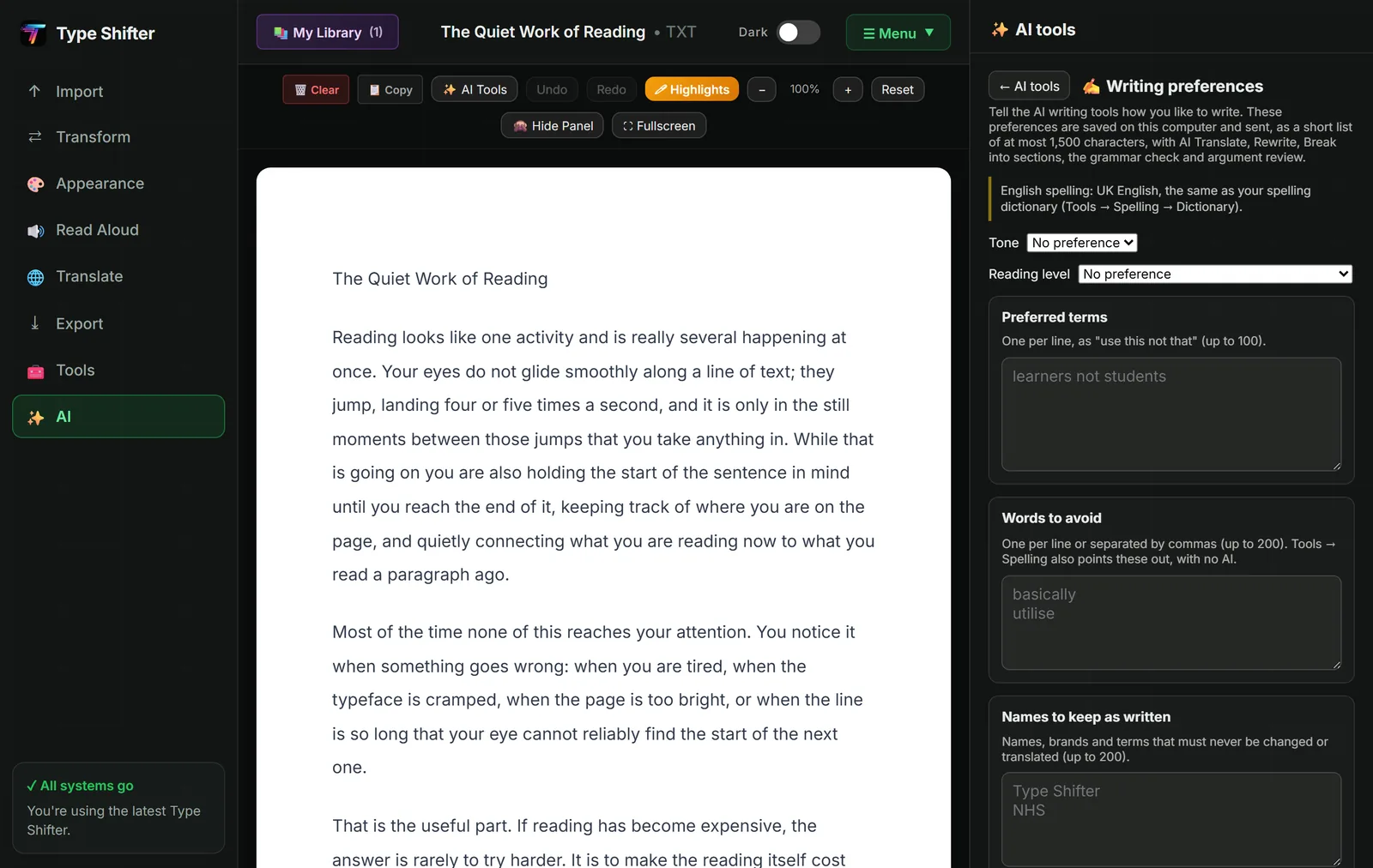
You can record your own spellings, your preferred tone, the words you never want used, and the names you want left exactly as they are. Those preferences stay on your computer and shape every suggestion. If you write in British English, you can finally stop fighting software that keeps trying to make it American.
Make a table, and break a wall of text into sections
Two small tools that punch far above their weight. The first turns a paragraph that is really a list into a proper table. The second gives a solid wall of unbroken text some headings and paragraphs, which is often all that stands between a document and being readable at all. Our piece on why documents look unprofessional and how to fix them fast covers the same ground from the design side.
Translation Stays Free, Because It Runs on Your Device
This deserves its own heading, because it is the opposite of what most apps do.
Translation in Type Shifter is free, unlimited and unmetered in every build. On Windows it uses Offline Translate with local language packs. In the browser it runs the same family of models inside the page itself. Either way your text never leaves the machine, there is no counter ticking down, and it works with no internet connection at all.
Selling a cloud translation next to a free one that already does the job would be a worse product, so it is not sold. There is a bilingual reading view as well, where a document sits beside its translation line by line, which is a lovely way to read in a language you are still learning.
A quick honesty note
AI gets things wrong. It can misread a table, miss the qualifier in a sentence, or sound perfectly certain about something it has half understood. That is precisely why every answer here cites its source. Treat the AI as a fast way to find the right paragraph, and then read the paragraph.
What It Costs
No dark patterns, so here are the numbers plainly laid out.
| What | Cost | What you get |
|---|---|---|
| The app itself | £29 once | A lifetime licence. Reading, templates, fonts, OCR, text to speech, MP3 export, PDF tools, translation and every export format. Not a subscription. |
| The free version | Free | What stays after the 14-day trial if you do not buy: reading, formatting, Bionic Reading, the dyslexia font, dark mode, two voices, English transcription and every export format. |
| Explain a selection | Free | 30 uses a month, no subscription at all |
| Translation and bilingual reading | Free | Unmetered, on your device, works offline |
| Pro | £9.99 a month or £99.99 a year | The full set of AI tools, with a monthly allowance on each |
| Credit packs | From £3 | For the occasional extras that cost real money to run, such as generated pictures |
The yearly Pro price works out at two months free. Anyone already on the older Tier 1 or Tier 2 subscriptions keeps exactly what they had, at the price they signed up on. A licence covers three devices and syncs your library between them.
Privacy, in Plain Terms
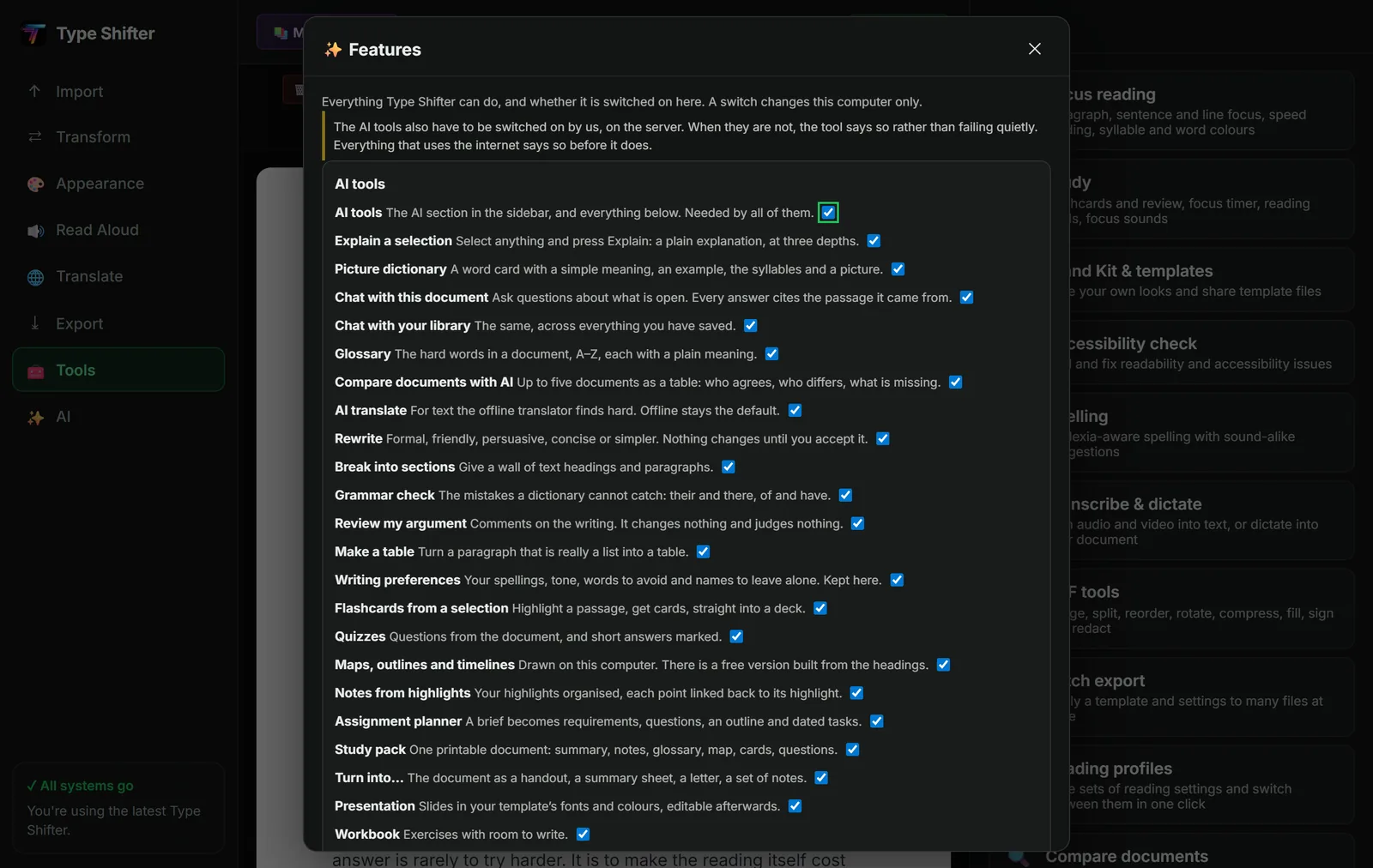
Every feature that uses the internet says so before it does anything, and every one of them can be switched off individually in the Features panel. Switching one off changes your own computer and nobody else's.
- Stays on your device, always: reading and formatting, Bionic Reading, dark mode, OpenDyslexic, text to speech, MP3 export, OCR, translation, bilingual reading, spell check, every PDF tool, the layout check, your flashcard decks and your reading statistics.
- Sent only when you press the button: the text an AI tool needs, only that text, and only for as long as it takes to answer.
- Never sent at all: your writing preferences, your saved signature, your highlights when you share a document with somebody, and your feature switches.
The full detail lives on the privacy page, written in the same plain language as the rest of the site rather than in legal fog. If you would rather ask a person, contact us and you will get one.
How to Turn It On
The AI tools appear in the sidebar and on the selection toolbar, the little bar that pops up whenever you highlight text. If you want them off, there is one master switch that turns the whole set off at once, and a Features panel listing every tool with a plain sentence saying what it does, so you can pick them one at a time.
Two things are honestly not possible in the browser version, and the app says so rather than pretending otherwise: using your own OpenAI key, and connecting cloud storage such as Drive, OneDrive, Dropbox or Notion. Both need somewhere to keep a secret that the page's own scripts cannot read, and a browser has nowhere to put one. Moving that to our server would mean we could see your key or your files, which is a different promise from the one we made. Both work in the Windows app.
Try it on a document you already have
Open something long and ask it a question. Free for 14 days, no card, and no sign-up just to read.
Where to Go Next
If you are a student, or you revise for anything at all, the companion piece to this one is turning any document into flashcards, quizzes and a study pack, which covers the learning side of the same release. And when a document needs to become a talk, turning a document into slides, a narrated video or an audio overview picks up where this leaves off.
If your interest is less about AI and more about getting work done without handing your files to a website, read nine PDF tools that never upload your files.
And if Type Shifter is new to you, start with the full tour of templates, fonts and exports, have a look at the free image to text tool or the web page to PDF converter, or simply open the app and paste something in.
Frequently Asked Questions
What does it mean to chat with a document?
You open a file, type a question in plain language, and get an answer drawn from that document rather than from the internet. In Type Shifter every answer carries the passage it came from, so you can click through and read the original sentences for yourself instead of taking the answer on trust.
Can AI read a whole folder of documents at once?
Yes. Chat with your library searches everything you have saved rather than the single file on screen, which is how you find the one paragraph you half remember without opening twenty documents. Compare documents goes further and lays up to five files side by side in a table showing where they agree, where they differ and what one of them leaves out.
Is any of this free?
Explain a selection has a free monthly allowance of thirty uses with no subscription at all, and translation is free and unmetered in every build because it runs on your own device. The rest of the AI tools are part of Pro, which costs £9.99 a month or £99.99 a year. The one-off £29 licence that unlocks the app itself is separate, and it is not a subscription.
Does Type Shifter send my documents to a server?
Only when you actively press an AI button, and only the text that tool needs. Reading, formatting, text to speech, OCR, translation and every PDF tool run on your own device and send nothing anywhere. Each AI tool tells you it uses the internet before it does, and every feature can be switched off individually in the Features panel.
Will the AI rewrite my work without asking?
No. Rewrite shows you the suggestion and changes nothing in your document until you accept it, Review my argument only comments and never edits, and Writing preferences let you record your spellings, your tone and the names you want left alone, so suggestions sound like you rather than like a machine.
Can I use these AI tools if I have dyslexia or ADHD?
They were built with exactly that in mind. Explain and the picture dictionary remove the words that stop you, the glossary front loads the vocabulary, and Break into sections turns a daunting wall of text into something with shape. They sit alongside Bionic Reading, OpenDyslexic, the reading ruler and colour overlays, which all run on your device. Our guides to reading with ADHD and accessible reading with dyslexia go into that properly.
Which AI model does Type Shifter use, and can I bring my own?
The AI tools run through our provider by default. In the Windows app you can supply your own OpenAI key instead, and it is kept in the operating system's key store on your machine and never sent to us. That option is not offered in the browser, because a web page has nowhere safe to keep a key its own scripts cannot read.