Why Turning Writing Into Slides Is So Draining
Writing and presenting ask for completely different shapes. A document builds an argument paragraph by paragraph. A presentation needs one idea per slide, a handful of words on screen, and the rest said out loud. Converting one into the other means making dozens of small decisions: what is the headline here, what can go, what order will make sense to a room.
Those decisions are exactly where people get stuck, and it is not a lack of ability. It is decision fatigue, and it lands hardest on anyone who already finds planning and sequencing tiring, including many people with ADHD or dyslexia. The fix is not to hand the whole job to a machine. It is to let the machine draft the structure so that your energy goes into judging it, which is the part that actually needs a human.
One Place for Everything You Make
In the Studio layout of the Windows desktop app, all of this lives on a single page called Create & Present. In the web app, and in the Classic layout on the desktop, the same tools sit in the AI view. Either way, the starting point is simply a document you have open.
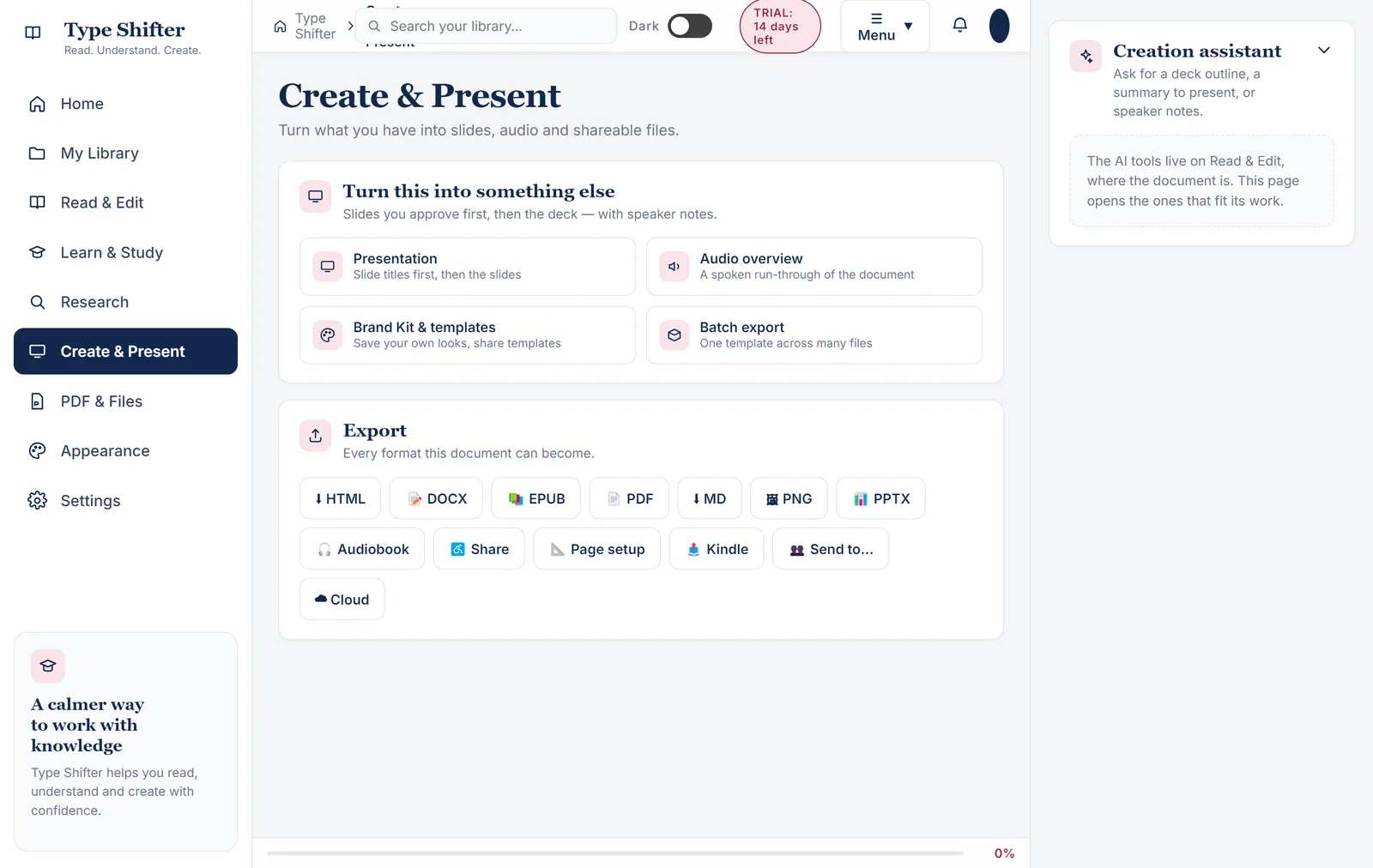
Nothing you make here touches your original. Every slide deck, summary, poster, video or audio overview is a new creation that opens in its own window, is saved on your computer, and can be edited and exported without the source document ever changing.
Presentation: You Approve the Plan Before a Word Is Written
This is the tool most people will reach for first, and the way it works is deliberately different from the "press a button and hope" approach of many AI presentation makers.
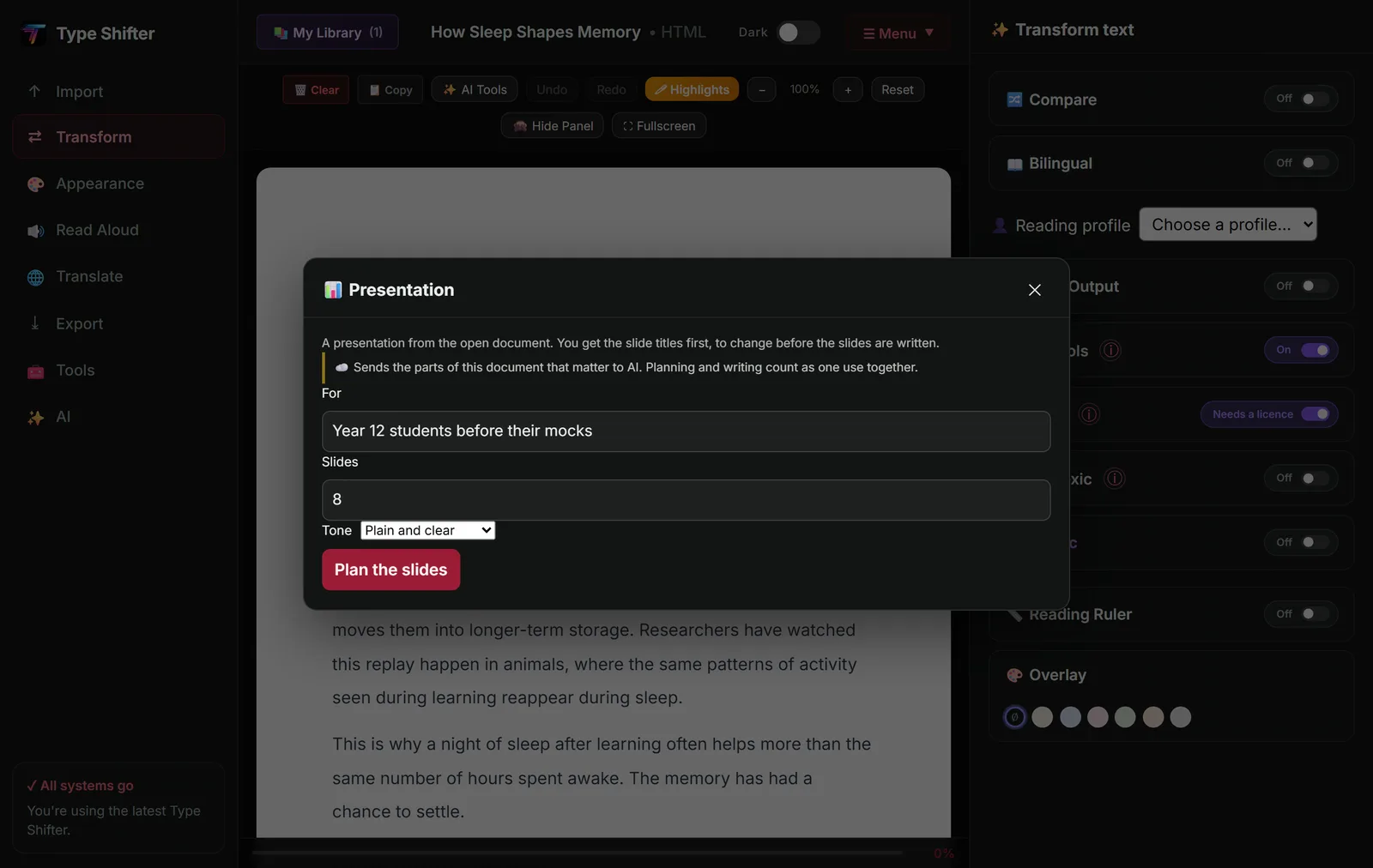
You start by telling it three things:
- Who it is for. "New volunteers", "the finance committee", "Year 12 students before their mocks". This single line changes the language, the level of detail and what gets emphasised.
- How many slides. Anything from 5 to 30.
- The tone. Plain and clear, Warm and friendly, Formal, or Persuasive.
Then comes the important bit. You do not get slides straight away. You get the slide titles, and you can rename them, move them up or down, or delete the ones you do not want. Only when the shape of the talk looks right do you press on, and the slides are written from your document, each with speaker notes so you know what to say while it is on screen.
Why titles first makes such a difference
Agreeing the running order before the detail is how good presenters work anyway. It means the finished deck says what you wanted to say, in the order you wanted to say it, rather than what a model guessed. It is also quicker, and it is fairer on your allowance: planning and writing count together as a single use.
Editing and saving your slides
The finished deck opens in the Create window, where every slide is listed down the side and shown full size beside it.
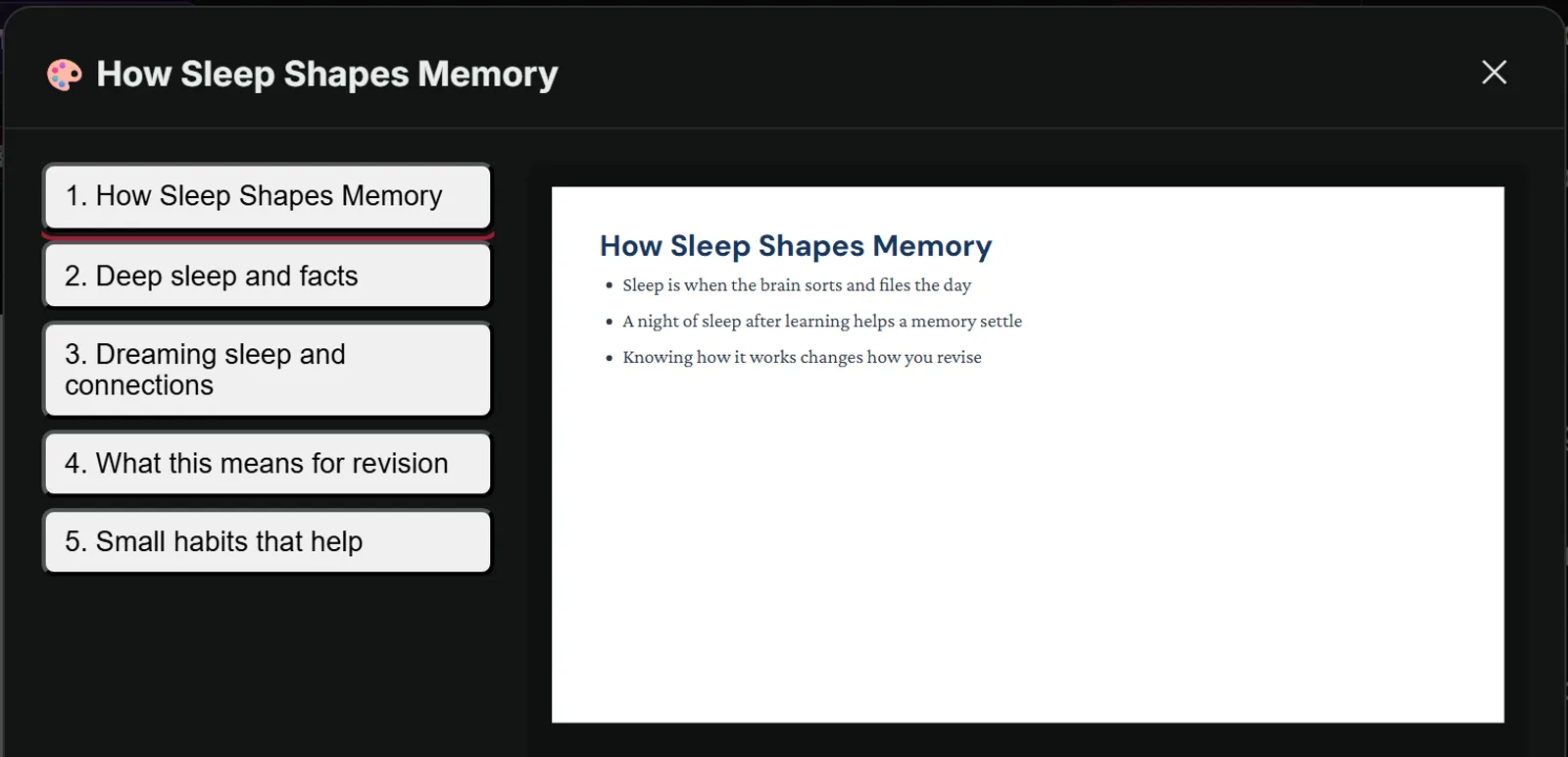
You can change any text in place, move a slide up or down, copy it or delete it, and switch a slide to a different layout while keeping whatever text still fits. Everything saves as you go, so closing the window never loses anything. When you are happy, save the deck in one of three ways:
- Save as PowerPoint, a real .pptx file you can open in PowerPoint, Keynote or Google Slides, add your own branding to, and present as normal.
- Save as PDF, ideal for sending round before or after a meeting, or for printing handouts.
- Save as pictures, one image per slide, which is perfect for social media posts, a newsletter or a learning platform that will not accept slide files.
If you have built a brand kit with your organisation's fonts and colours, it applies here too, so everything you make looks like it came from the same place. Our guide to brand kits and batch export shows how to set one up.
Turn Into: Five Shapes From One Document
Sometimes a full presentation is not what you need. A committee wants a single page. A noticeboard wants a poster. A social media post wants a handful of cards. The Turn into window offers all of these from the same document.
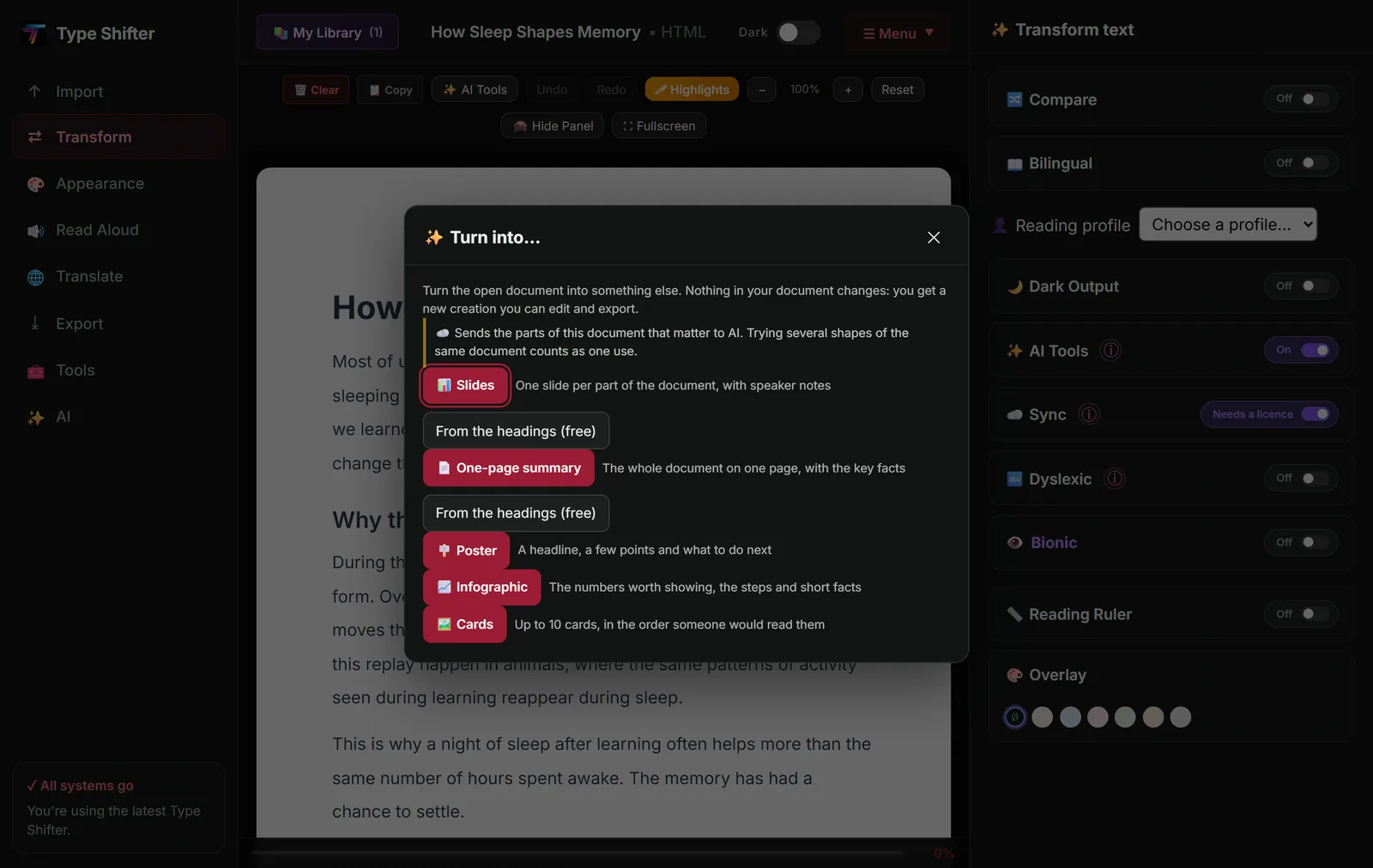
| Shape | What you get | Good for |
|---|---|---|
| Slides | One slide per part of the document, with speaker notes | Meetings, lessons, briefings |
| One-page summary | The whole document on a page, with the key facts | Committees, managers, anyone short of time |
| Poster | A headline, a few points and what to do next | Noticeboards, events, staff rooms |
| Infographic | The numbers worth showing, the steps and short facts | Reports, annual reviews, fundraising |
| Cards | Up to 10 cards, in the order someone would read them | Instagram and LinkedIn carousels, revision cards |
Slides and a one-page summary can also be made from the headings, free, with no AI at all. Type Shifter builds them on your own computer from the document's headings and the first sentence of each paragraph. It costs nothing, uses none of your allowance, and works offline.
Numbers you can trust
A statistic on a slide carries a lot of weight, so every number is checked against the passage it came from. If a figure cannot be found in your document, it is marked check this on screen so you can confirm it before you stand up and say it. That marker never appears in an export. It is there for you, not your audience.
Make a Video: Your Slides, With a Voice Over Them
A narrated video is one of the most useful things you can make from a deck, and one of the most fiddly to produce by hand. Recording each slide, keeping the timings right and adding captions can easily swallow a day. In the Create window, it is a button.
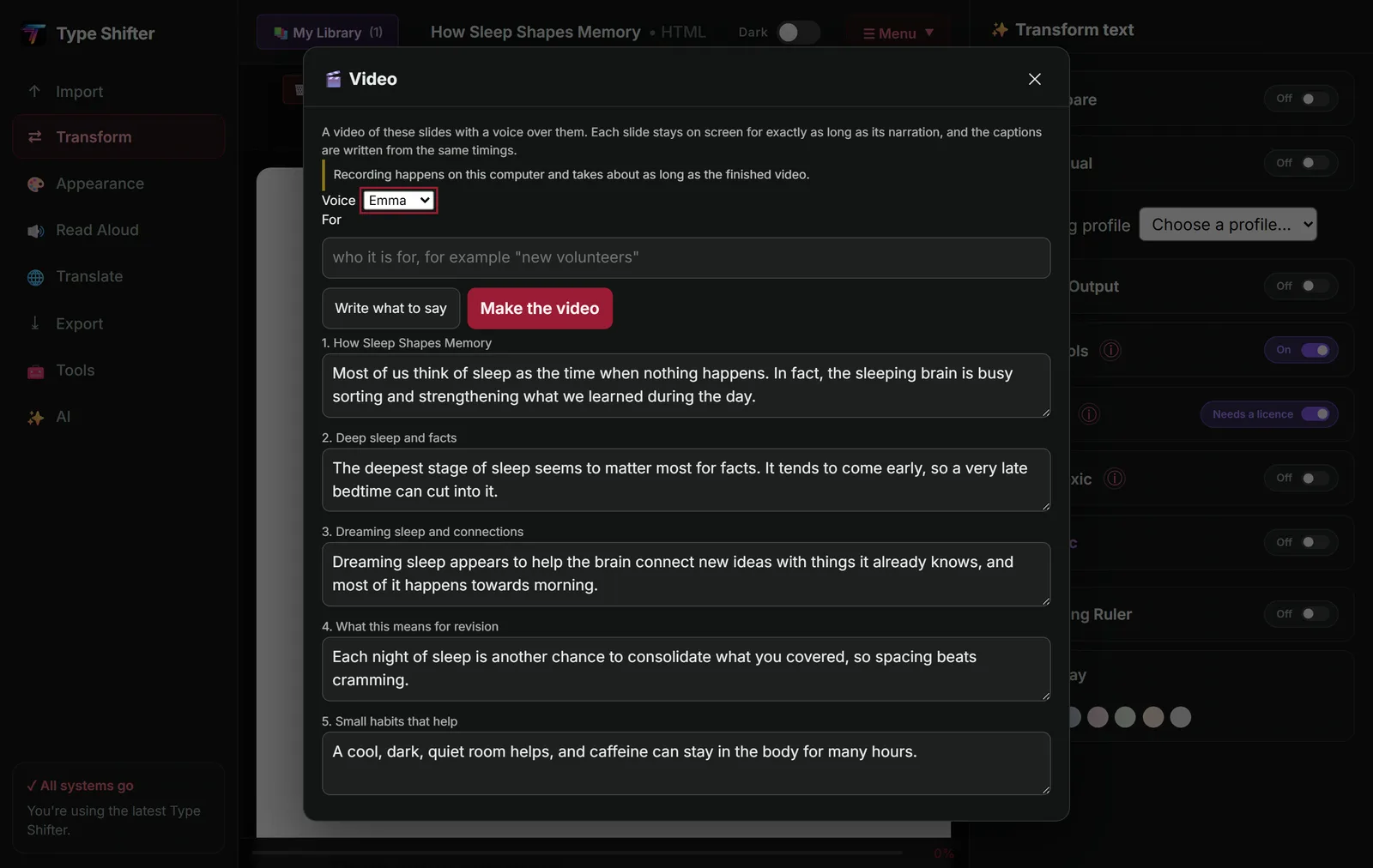
What will be said over each slide starts as that slide's speaker notes. If you would rather have a proper script, press Write what to say and one is written for you, pitched at whoever you said the video is for. Either way, every slide's narration sits in its own box so you can reword anything before a single second is recorded.
Then choose a voice and press Make the video. The narration is spoken by a voice on your own computer, one slide at a time, and each slide stays on screen for exactly as long as its narration lasts, so the pictures and the words can never drift apart. Captions are written from the very same timings and saved beside the video, which matters for accessibility and for the many people who watch with the sound off.
The video is saved as a WebM file, which plays in every modern browser and uploads happily to YouTube and many learning platforms. Recording happens on your computer and takes about as long as the finished video, so a five minute explainer is ready in roughly five minutes.
Audio Overview: Two Voices Talking Your Document Through
Not everything needs to be seen. Sometimes the most useful version of a document is one you can listen to on the walk to work, and a lively conversation is far easier to follow by ear than a single voice reading paragraphs aloud.
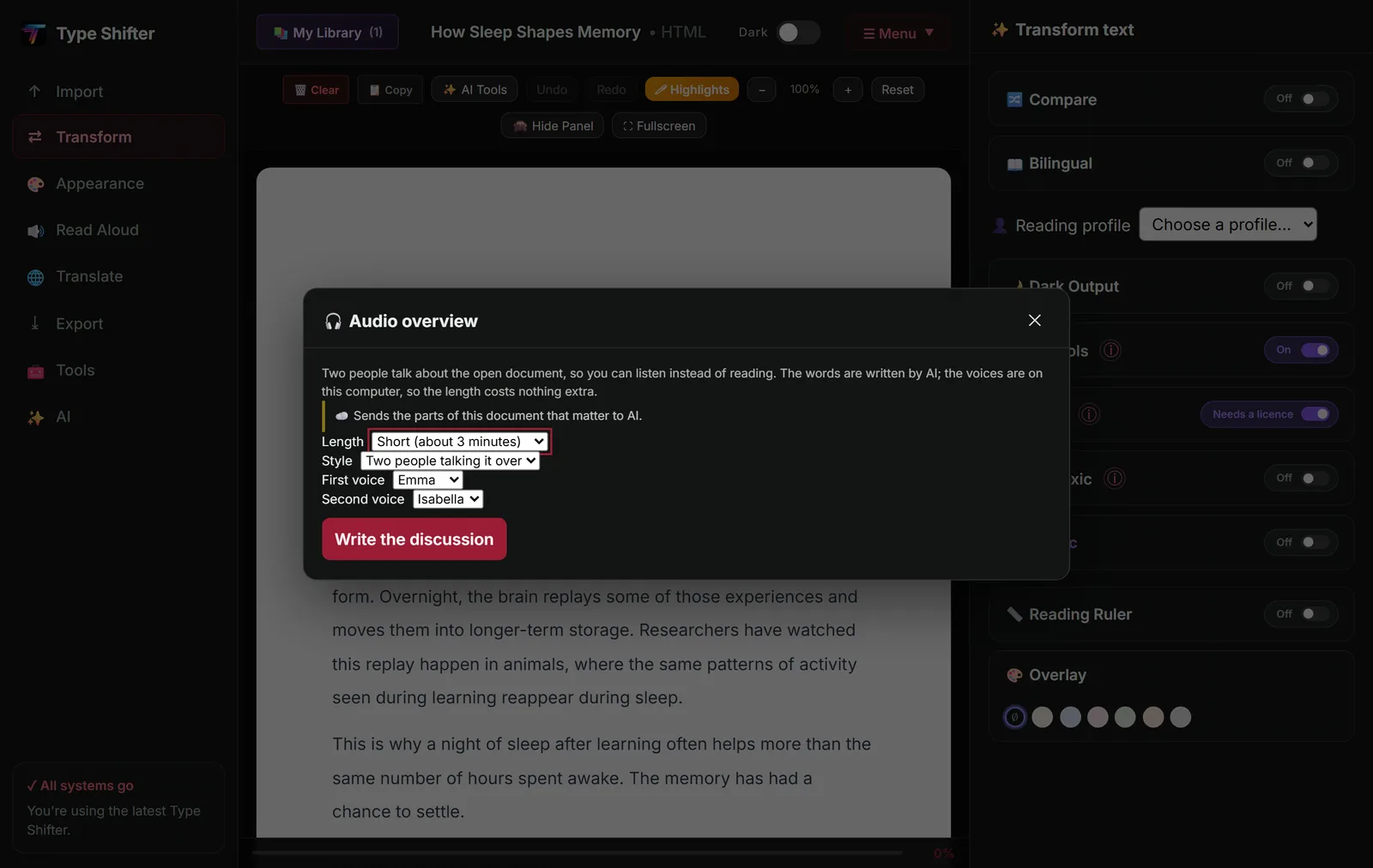
You choose a length, short at about three minutes or longer at about eight, and a style: two people talking it over, or a study session in which one voice is revising and the other checks their understanding, with the key points said clearly and repeated at the end. Pick two voices and press Write the discussion. The script appears first, so you can read it before it is recorded, and because the voices live on your computer, a longer discussion costs nothing extra.
While you read the script, each turn has a Show in document button that jumps to the passage it came from, and just as with slides, any number that is not in your document is marked check this. The finished overview is saved as an MP3 with a written transcript beside it. It is a lovely way to get the gist of a long report before you read it properly, or to go over a chapter again while you cook. Our piece on turning recordings into documents and documents into audio covers the other listening tools.
Real People, Real Uses
It helps to picture where this fits into an actual week.
A teacher has a well written handout on the causes of the First World War. Presentation, set to fifteen slides for Year 9 in a warm and friendly tone, gives her a lesson deck in the time it takes to make a cup of tea. She saves it as PowerPoint to add her own pictures, and makes a narrated video of it for the student who is off sick.
A charity volunteer coordinator has a twelve page induction pack that nobody reads. It becomes an eight slide briefing for new volunteers, a one-page summary for the noticeboard, and a set of cards for the charity's Instagram, all from the same document in one sitting.
A university student has to present a paper to their seminar group. They plan the slides, cut two titles they do not need, reorder the rest, and use the speaker notes as prompts. The night before, they listen to a study session audio overview of the paper on the bus home.
A small business owner turns a quarterly report into a persuasive deck for the bank, an infographic for the website, and a two minute narrated video for the team who work different shifts.
Honest Answers About the AI
We would rather you trusted these tools because you understand them, so here are the plain facts.
- It works from your document. The parts of the document that matter are sent to our AI service to draft slides, scripts and summaries, and each tool tells you what it sends before it sends it.
- You stay in control. You approve slide titles, edit every slide, and read every script before it is recorded.
- Figures are checked. Numbers are compared with your source, and anything unconfirmed is flagged on screen.
- The voices are local. Narration for videos and audio overviews is spoken by voices on your own computer.
- It is part of Pro. The AI tools come with the Pro plan, at £9.99 a month or £99.99 a year, which includes a generous monthly allowance, with optional credits if you ever need more. The slides and summary made from the headings are free, as are all the ordinary exports.
AI drafts are a head start, not a finished product. Read the deck through before you present it, as you would with anything a colleague had drafted for you. That five minutes is still a great deal shorter than the evening it replaces.
Present it on Monday without losing Sunday
Open a document you need to present, plan the slides, and see how much of the evening you get back. Free for 14 days.
Where to Go Next
A presentation is only as good as the reading behind it. If your source documents are scattered across folders, giving your reading a calm home with My Library is the place to start, and your highlights make excellent raw material for slides. If you would like to rehearse your talk by ear, the read aloud proofreading trick works just as well for speeches. And to take any of this on the move, Type Shifter on your phone and tablet shows how to listen wherever you are.
Frequently Asked Questions
Can Type Shifter turn a Word document into a PowerPoint presentation?
Yes. Open the document, choose Presentation, and Type Shifter suggests slide titles for you to approve before it writes the slides with speaker notes. The finished deck can be saved as a PowerPoint file, a PDF or a set of pictures. It works with Word documents, PDFs, ebooks, web pages and pasted text.
Will it change my original document?
No. Slides, posters, summaries, videos and audio overviews are all new creations that open in their own window. Your original document is never altered.
How do I stop AI from making things up in my slides?
Type Shifter works only from the passages in your own document, and you approve the slide titles before anything is written. Every number is checked against the passage it came from, and any figure that cannot be found there is marked check this on screen, so you can confirm it before you present. It never appears in an export.
What format is the narrated video?
The video is saved as a WebM file with a captions file beside it. WebM plays in every modern browser and uploads to YouTube and many learning platforms. The narration is spoken by a voice on your own computer and recording takes about as long as the finished video.
Do I need a subscription for these tools?
The AI tools, including Presentation, Turn into, narrated scripts and Audio overview, are part of the Pro plan at £9.99 a month or £99.99 a year, with a monthly allowance and optional credits for extra use. The app itself, including exports to PDF, Word, EPUB, HTML and PowerPoint, is a one-off £29 licence.
Can I make a workbook or activity sheet instead?
Yes. Workbook, in Learn & Study and the AI view, turns a document into activities to print and fill in, with an optional answer page, and saves them as a Word document. For flashcards, quizzes and study packs, see revise smarter, not longer.